
You built a Google Form, you're ready to send it out, and you want it to appear right inside the email, with no extra click and no separate tab. So you go searching for how to embed a Google Form in an email, and the answers you find contradict each other. Some say yes, some say no, and some hand you steps that quietly don't work for half your recipients.
Here's the honest version. You can embed a Google Form in an email, but only in one narrow situation, and for everyone else that interactive form simply won't load. This guide gives you the one method that genuinely works, a clear table of what each email app actually shows your recipients, and the reliable alternative that teams use to collect responses from every inbox.
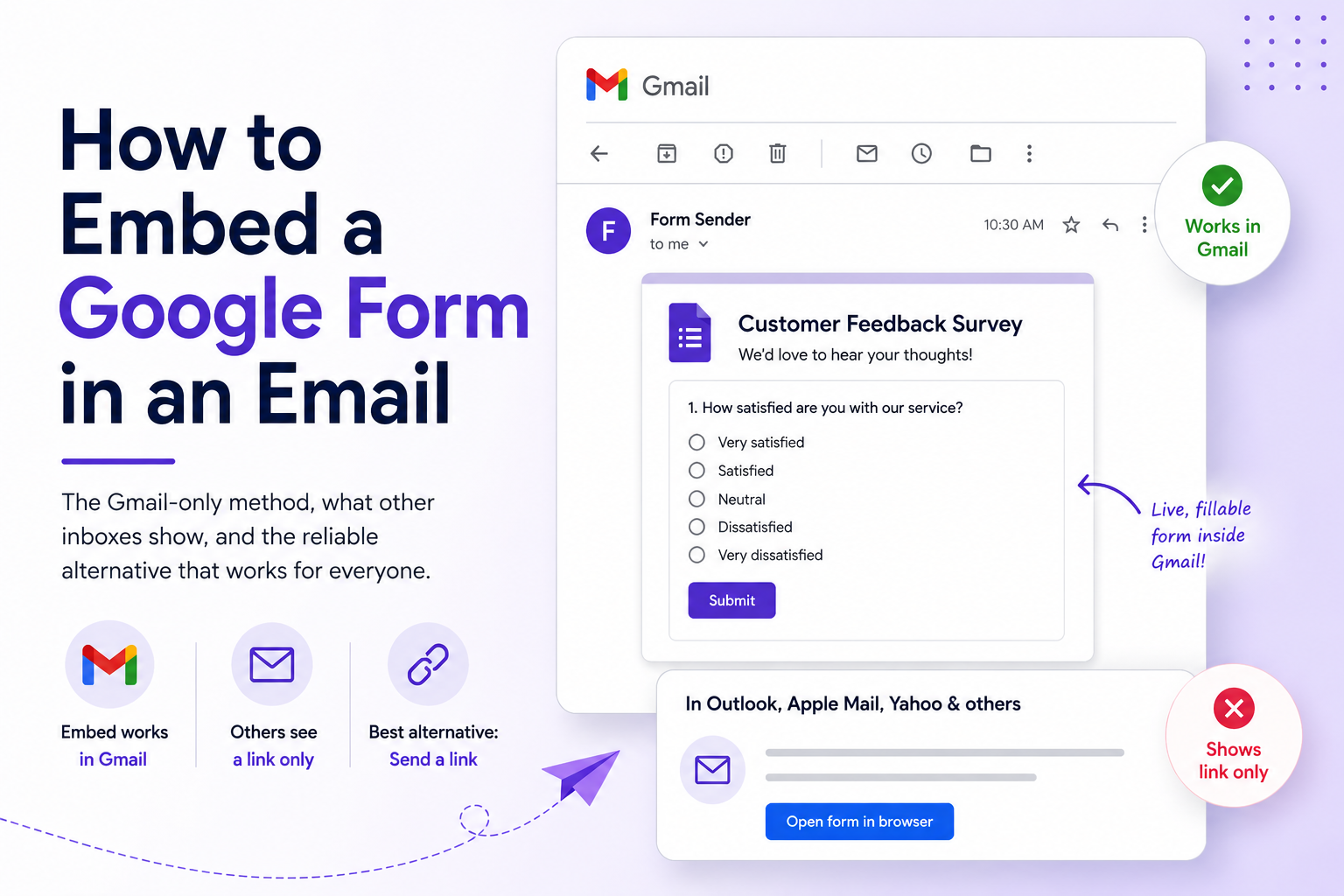
Short answer: You can only embed a working, fillable Google Form inside an email when both you and your recipient use Gmail. In Outlook, Apple Mail, Yahoo, and most other apps, the embedded form is replaced with a plain link. So for any mixed audience, send a clear link or button instead of relying on the embed.
Can You Embed a Google Form in an Email? The Short Answer
Yes — but only Gmail-to-Gmail. Google Forms has one built-in way to put a live form inside an email: the Include form in email option. It renders as a working, fillable form only when you send from Gmail and your recipient opens the message in Gmail. Outlook, Apple Mail, Yahoo, and most other email apps strip the form out for security and show a link instead.
So for any real-world email list, where you can't control which inbox people use, the dependable approach is to send a button or link to the form, not to embed it. The rest of this guide shows you both paths and exactly when each one works.
Why You Can't Truly Embed a Google Form in Most Emails
A Google Form is interactive web content. It runs on HTML, CSS, JavaScript, and an <iframe>. Email clients deliberately strip <iframe>, <script>, and most JavaScript out of every message they display: a live, scriptable element sitting in your inbox is a phishing and malware risk, so email apps refuse to run it.
That's why pasting a Google Form's embed code straight into an email does nothing useful: the email client removes the <iframe> and your recipient sees a blank space or a broken block.
This isn't a flaw specific to Google Forms. It's true of every form builder. No form, from any tool, can run as a fully interactive, submit-in-place form inside the body of an Outlook or Apple Mail message. The handful of "interactive email" and AMP-for-Email experiments that exist are narrow, require special sender setup, and still don't cover the majority of inboxes.
The one workaround Google built is the Include form in email feature, and it only works because Gmail can make a rendering exception for Google's own content.
The One Method That Works: Gmail's "Include Form in Email"
If you and your recipients are all on Gmail (common for internal company surveys, classroom polls, or Google Workspace teams), this method is genuinely handy. Here's how to embed a Google Form into an email step by step:
- Open your form at forms.google.com and finish editing it.
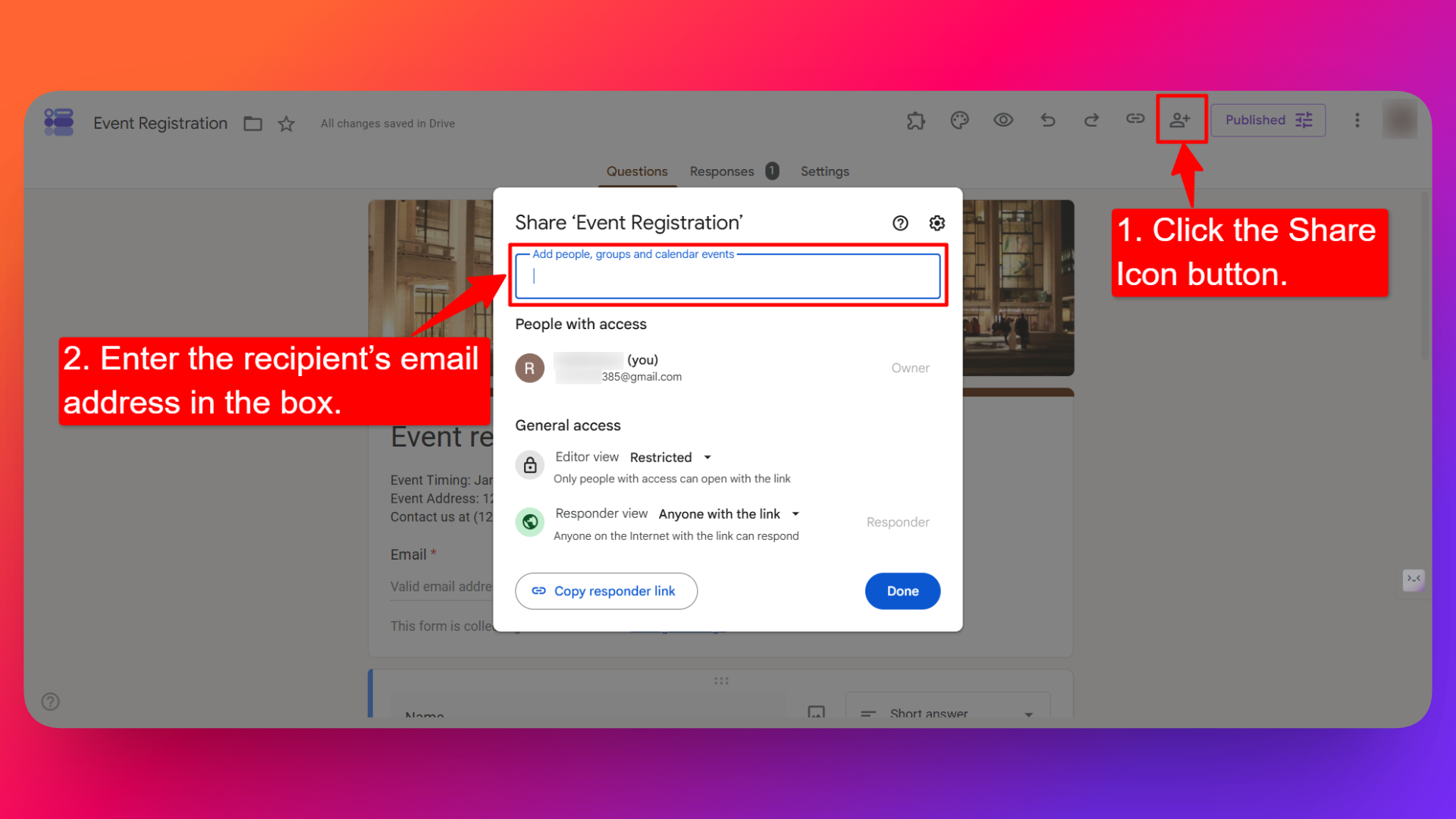
- Click the Share Icon button in the top-right corner.
- Enter the recipient’s email address in the box. You can also add groups or calendar events.
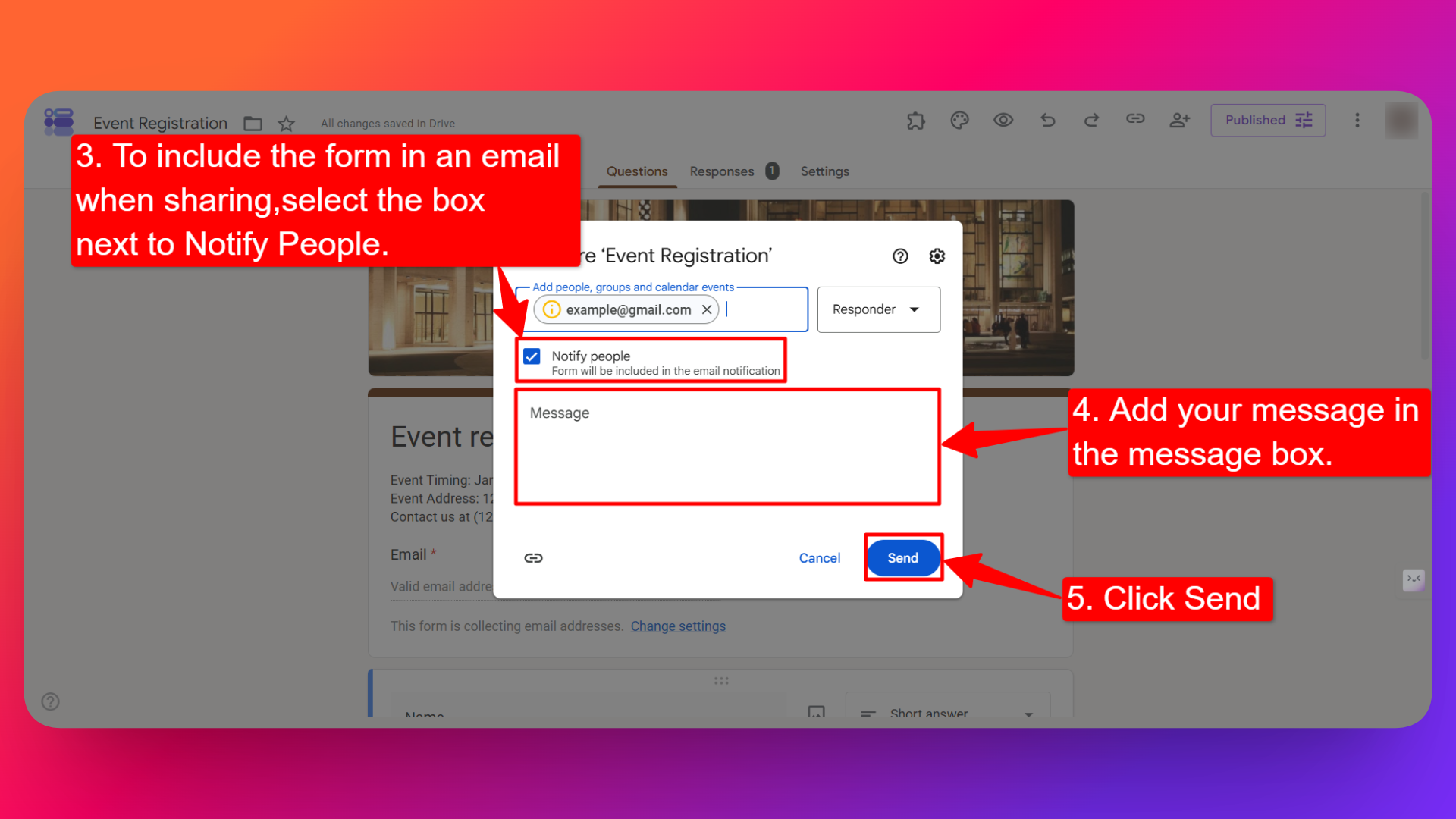
- To send the form automatically in an email notification when sharing, select the box next to Notify People and add your message in the message box. When notifying responders upon publishing the form, the email sent to them will include the form.
- Click Send.
When a recipient on Gmail opens that message, the first page of the form appears right inside the email body and they can answer and submit without leaving their inbox. Google's own help article on publishing and sharing forms documents this option.
The Limitations You Need to Know
Before you rely on this, understand where it falls short:
- Gmail-to-Gmail only. Recipients reading the message in Outlook, Apple Mail, Yahoo, or virtually any non-Gmail client get a plain link instead of the embedded form.
- Some question types break the embed entirely. Google Forms will not embed a form in email if it contains file upload questions, rating or linear-scale questions, images inside questions, or if it's a quiz with restricted access. If your form uses any of these, the embed silently falls back to a link, even for Gmail recipients.
- Only the first section embeds. For multi-page forms, respondents click through to the browser for the remaining pages.
- Minimal branding and no real tracking. You can't style the embedded form to match your email, and you don't get the engagement data a proper landing page would give you.
- The option sometimes disappears. Google has changed this interface more than once. If you can't find "Include form in email," your form most likely contains an unsupported question type, or your Workspace administrator has restricted form sharing.
What Your Recipients Actually See (Email Client Compatibility)
This is the part most guides skip. The Include form in email checkbox doesn't fail with an error. It just quietly downgrades to a link for anyone outside Gmail. Here's the reality of a Google Forms embed in email, by client:
| Email client | What the recipient actually sees |
|---|---|
| Gmail — web | The live, fillable form embedded in the message ✅ |
| Gmail — Android & iOS app | The live, fillable form embedded in the message ✅ |
| Outlook — desktop, web & mobile | A link to open the form in a browser, no embedded form |
| Apple Mail — Mac & iPhone | A link to open the form in a browser, no embedded form |
| Yahoo Mail | A link to open the form in a browser, no embedded form |
| Any form with file upload, rating, or image questions | A link only, even Gmail recipients don't get the embed |
The takeaway is simple. If your audience is a single Gmail or Workspace domain you control, the embed is a pleasant touch. If it's a newsletter list, a customer base, or anyone external, assume most people get a link, so you should design the email around the link from the start.
The Reliable Alternative: Send a Form Link People Can Actually Open
Because true embedding only works for a slice of inboxes, here's what teams who genuinely need responses do instead. Three options, simplest first.
Option 1: Put the Google Form Link in a Button
In the Share Icon window, click the link tab (🔗) and copy the form's URL. Then, in your email, don't paste a raw URL. Wrap it in a clear call-to-action button: "Start the survey," "Book your slot," "Give 2 minutes of feedback."
A labelled button gets noticeably more clicks than a bare link, and it renders consistently in every email client. Gmail's own editor, Outlook, Mailchimp, and most email tools let you insert a button block in a couple of clicks.
Option 2: Embed the Google Form on a Web Page, Then Link That Page
If you want the form to look embedded, embed it on a web page and send people to that page. Google Forms gives you the code for this: open your form, click the ⋮ (More) menu, choose Embed HTML, and copy the <iframe>. Paste that into any web page, landing page, or blog post.
If you'd rather not hand-edit iframe code, FormNX offers a free Embed Google Form on Website tool that generates clean, responsive embed code for you. It's one of several free Google Forms utilities on the FormNX free tools page, all of which you can use free of charge, including a Google Forms email-notifications generator, a form-to-calendar generator, and a QR code generator. Once the form lives on a page, your email just needs a button pointing at that page.
This is also how you'd place a form on WordPress, Webflow, or any site. Our guide on adding forms to WordPress walks through the embed process in detail.
Option 3: Use a Form That's Built to Be Shared by Link
The cleanest fix is to stop fighting the embed altogether and use a form that's designed to be opened from an email: a hosted, branded, mobile-friendly page that behaves identically for every recipient regardless of their inbox. That's where a dedicated form builder like FormNX comes in.
Doing It Cleanly With FormNX
Every form you build in FormNX is, automatically:
- A shareable hosted page. One clean URL you drop into any email button. It opens the same way in Gmail, Outlook, Apple Mail, Yahoo, and on mobile, so you never have to wonder what a recipient will see.
- Embeddable on any website (embed in a website) or as a popup, perfect for the Option 2 landing-page route, with no iframe code to touch.
- Branded. Your logo and colours, with full white-labelling on paid plans so the form page matches the email it came from.
And because email is usually the whole point of sending a form, FormNX also gives you email-to-me submission alerts and auto-response confirmation emails, so both you and your respondent get a confirmation the moment the form is submitted. (If you're staying on Google Forms, we cover that exact workflow in How to Send a Confirmation Email in Google Forms.)
FormNX is trusted by 7,000+ customers, with 13,000+ forms created and 500,000+ submissions processed at 99.99% uptime. In our experience helping teams move email surveys off the "embed it and hope" approach, the single biggest jump in response rate comes from one change: stop trying to embed, and start sending a branded, one-tap link. You can see how teams rate the experience on the FormNX G2 reviews page.
If Google Forms' Gmail-only embedding keeps causing headaches, it's worth scanning the top Google Forms alternatives or our side-by-side FormNX vs Google Forms comparison to see what changes when the form is built for sharing from day one.
And if QR codes fit your audience better than email — printed flyers, posters, table tents, or in-person events — see How to Create a QR Code for Google Forms for six free methods, including which ones give you a static vs dynamic code.
Best Practices for Forms You Send by Email
Whichever route you take, these habits lift completion rates:
- Lead with one button, not a wall of text. Make the action obvious within the first screen of the email. One primary CTA beats three competing links.
- Design for mobile first. A large share of email opens happen on a phone. A tappable button and a short, mobile-friendly form matter more than a desktop-perfect layout.
- Never depend on the embed. Even for a Gmail-to-Gmail audience, send yourself a test first, to a Gmail inbox and a non-Gmail inbox, so you see exactly what each group receives.
- Keep the form short. Every extra question costs you responses. Ask only what you'll actually act on.
- Set expectations in the email copy. "Takes 2 minutes, 6 quick questions" reassures the reader before they click.
- Follow up. A short reminder email a few days later reliably recovers responses from people who meant to reply and forgot.
Frequently Asked Questions
Can a Google Form be embedded in an email?
Partially. Google Forms' "Include form in email" option embeds a live, fillable form, but only for recipients who open the message in Gmail. On Outlook, Apple Mail, Yahoo, and other clients, the form is replaced with a link. Forms that use file upload, rating, or image questions can't be embedded in email at all, even in Gmail.
How do I embed a Google Form in an email?
Open your form, click Share Icon, add recipient email addresses in the box, and tick Include form in email before clicking Send. Gmail recipients see the embedded form; everyone else receives a link. For a mixed audience, skip the embed and send a clearly labelled link or button instead.
Why don't I see the "Include form in email" option?
There are two common reasons. Either your form contains a question type that can't be embedded (file upload, rating or linear-scale questions, images inside questions, or a restricted quiz), or your Google Workspace administrator has limited form sharing. Remove the unsupported question type, or use the link option instead.
Can I embed a Google Form in Outlook?
No. Outlook (desktop, web, and mobile) strips interactive form content out of email for security, so an embedded Google Form will not render there. Outlook recipients only ever see a link to open the form in their browser. The same applies to Apple Mail and Yahoo Mail.
How do I link a Google Form to an email?
In the Share Icon window, choose the link (🔗) tab, copy the form URL, and add it to your email, ideally as a labelled button rather than a raw link. This is the most reliable method because the link opens the same way in every email client and on every device.
Is embedding a form in an email a good idea at all?
For a quick internal poll where everyone is on the same Gmail or Workspace domain, it's a nice convenience. For anything external (newsletters, customer surveys, lead capture) it isn't reliable, because most recipients won't get the embedded version. A branded, hosted form page linked from a button gives you consistent results across every inbox.
Send Your Form the Way That Actually Gets Responses
Embedding a Google Form in an email is one of those features that sounds great and works for only a narrow slice of senders. If your whole audience lives in Gmail, use Include form in email and enjoy it. For everyone else, the move that genuinely lifts response rates is simple: build a clean, branded form, host it on its own page, and send a single clear link to it.
FormNX does that out of the box: every form is a shareable page that looks right in every inbox, plus website embed, popups, and built-in confirmation emails. The free plan includes unlimited forms and submissions, and there's a set of free Google Forms tools you can use without even signing up: an embed-code generator, an email-notification generator, QR codes, and more.