
A QR code for Google Forms is a scannable image that opens your form's share URL when scanned with a phone camera. Google Forms itself has no native QR generator, so you create one externally from the form's share link, usually in under a minute, with no add-on or sign-up needed.
If you have searched for qr code for google forms, you want a working QR you can print on a flyer, slide, classroom wall, or restaurant table without paying for an add-on or watermarking your form. This guide walks through the fastest free method, six alternatives compared honestly, common gotchas for print, and a smarter alternative when you need scan tracking or branded share pages.
Short answer: Google Forms has no built-in QR code generator. To create one for free, open your form, click the purple Send button, click the link icon, tick Shorten URL, then Copy. Paste the link into the FormNX QR Code Generator for Google Forms and download a static PNG or SVG. The QR never expires as long as the form stays live, and there is no add-on, sign-up, or watermark.
The 60-Second Method
To create a QR code for a Google Form for free:
- Open your Google Form and click the purple Published button (top right).
- Click the link icon (chain), tick Shorten URL, then Copy.
- Paste the link into a free generator, such as the FormNX QR Code Generator for Google Forms, which works without sign-up or watermarks.
- Click Download and save the PNG or SVG.
That is it. The QR code never expires as long as your Google Form stays live, and it points to the form's permanent URL.
The slower path, and the one most tutorials skip, is choosing the right generator. Some watermark your image, some convert your QR into a tracked redirect (and start charging when scans cross a free cap), and the official Google Workspace QR add-on currently sits at a 2.9-star rating on the Marketplace. The next section compares the realistic options.
6 Ways to Create a QR Code for Google Forms
Method 1: FormNX QR Code Generator (Free, No Sign-up)
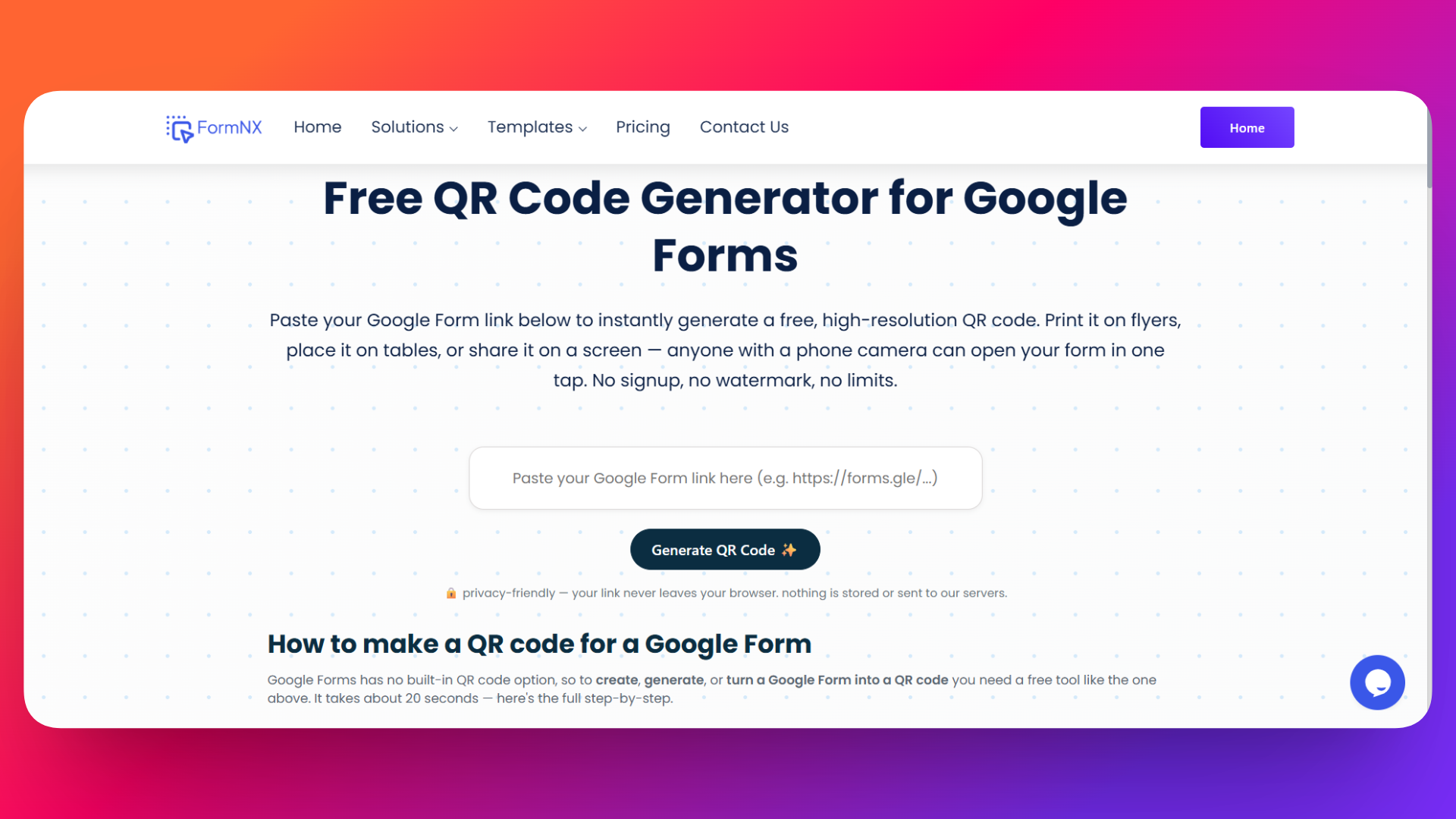
The FormNX QR Code Generator for Google Forms takes a Google Form URL and returns a static QR code with no watermark, no email gate, and no scan cap.
How to use it:
- Copy your Google Form share link (Published, then the link icon, then Copy).
- Open the generator and paste the link.
- Download the QR as PNG or SVG.
Why it is the easiest path: static QR codes (the kind you get here) point directly at the Google Form URL, so they never expire and never route through a third-party redirect that could disappear or paywall. Print it once, use it for years.
Method 2: Chrome's Built-in QR Code (No Tool At All)
If you are on a desktop with Google Chrome, you do not need any generator.
- Open your Google Form's share URL in a Chrome tab.
- Right-click the page and pick Create QR code for this page, or click the share icon in the address bar and select QR Code.
- Download the PNG.
The result is identical to method 1: a static QR pointing at the form URL. Worth knowing because it works offline and on locked-down work laptops where new sites are blocked.
Method 3: The Google Workspace QR Add-on (Skip This One)
The official "QR code for Google Forms™" add-on on the Workspace Marketplace claims to add a QR generator inside the form editor. According to the Workspace Marketplace listing, the add-on holds a 2.9 / 5 rating across 77 reviews (verified May 2026). Common complaints are install errors, "QR Code disabled" prompts, and watermarked exports on the free tier.
You can generate a QR code from the form URL on any free site in 10 seconds, so installing an add-on with permissions to your Google account is rarely worth it.
Method 4: Third-party Generators (Bitly, ME-QR, the-qrcode-generator)
Plenty of standalone QR generators work: The QR Code Generator, ME-QR, Bitly Codes, and dozens more.
Two things to watch for before picking one:
- Static vs. dynamic. A static QR encodes the URL directly. A dynamic QR encodes a short redirect URL controlled by the provider. Dynamic is useful for scan analytics, but the provider can cap free scans, paywall the data, or shut the redirect off. Bitly's free tier, for example, limits dynamic QR scans.
- Watermarks. Some "free" generators slap their logo on the QR or downgrade resolution unless you create an account. Test the export before designing your flyer around it.
A user in the r/GoogleForms subreddit captured the dynamic-QR pitfall well: "ME QR seemed fine at first, but then I realized it's kinda…" (the rest of the thread digs into scan caps and account walls). For most one-off needs (printed flyers, classroom QRs, restaurant tents), a static QR from any free generator avoids that trap entirely. Full discussion: How to generate QR code for Google Form without hidden limits? on r/GoogleForms.
For most use cases (print on a poster, scan to fill the form), static is what you want.
Method 5: Canva (For Design-Heavy Use Cases)
If you are already building the flyer or poster in Canva, you do not need to bounce out.
- In your Canva design, click Apps (bottom-left) and search for QR Code.
- Paste your Google Form URL into the URL field.
- Click Generate QR Code and drag it onto your canvas.
- Resize, colour, or place the QR inside your design.
The QR is static (it points straight at your form URL) and exports inside your final design. Quickest path when the QR will live inside a finished graphic.
Method 6: On Your Phone (No Computer)
To make a Google Form QR code from a phone:
- Open the form in your mobile browser, tap the share icon, and copy the link.
- Open a free generator like QR Code Monkey or the FormNX generator above in mobile Safari or Chrome.
- Paste the link, generate, and save the image to your camera roll.
Works the same as desktop. Handy when you need a QR on the spot at an event.
Method-by-Method Comparison
| Method | Watermark-free | Setup | Static or Dynamic | Best for |
|---|---|---|---|---|
| FormNX generator | Yes | None | Static | Most users: fastest, free, no caps |
| Chrome built-in | Yes | None | Static | Offline or locked-down devices |
| Workspace add-on | Limited | OAuth + install | Static | Skip: 2.9★ |
| Bitly / ME-QR / other | Varies | None to account | Often dynamic | When you need scan analytics |
| Canva | Yes | Already in Canva | Static | Designing a flyer or poster |
| On phone | Yes | None | Static | Event-day, last-minute |
Do Google Form QR Codes Expire?
No, a Google Form QR code does not expire, as long as two conditions hold:
- The Google Form itself stays live (you have not deleted it, moved ownership, or revoked share permissions).
- The QR is static, encoding the form's URL directly rather than a third-party redirect.
If you use a dynamic QR (from Bitly, ME-QR, etc.), the QR itself never expires, but the redirect between the QR and your form can break if the provider closes your account, hits a free-tier scan cap, or sunsets the short URL. Print thousands of stickers off a dynamic QR and you are betting on someone else's uptime.
The safest move for print: use a static QR for anything you cannot easily re-print.
Where to Use a Google Form QR Code (Real Use Cases)
QR codes turn into form submissions in lots of places. The ones we see most often from FormNX customers:
- Classroom attendance and exit tickets: print one QR per class, project it on the board, and students scan to submit. No login needed.
- Restaurant feedback: table tents with a "How was your meal?" QR. Pairs well with a short, single-page Google Form.
- Event RSVPs: printed invites, programmes, lanyards. The QR goes straight to the registration form.
- Conference and trade-show lead capture: booth signage with a "Get the demo" QR replaces paper sign-up sheets.
- Doctor's office check-in: patient intake form scanned from the waiting-room QR poster instead of a clipboard.
- Wedding and party guest forms: meal preferences, song requests, and photo uploads, all collected through a QR on the invitation.
For any of these, two design rules matter more than the generator you used:
- Print the QR at least 2 × 2 cm (about ¾ inch) on flyers, 5 × 5 cm on posters. Smaller and it stops scanning reliably from a distance.
- Always include a short label next to the QR ("Scan to RSVP") so people know what they are scanning before they point a camera at it.
Best Practices for Sharing Form QR Codes
A few tips from watching real FormNX customers run print campaigns through QR codes:
- Test the QR from at least 3 phones before printing. iOS, Android, and one older device. The QR can render fine on screen and still fail at print resolution.
- Shorten the URL before generating the QR. A shorter URL makes a less-dense QR, which scans more reliably at small sizes.
- Use high-contrast colours. Dark code on a light background. Inverted (light code on dark) only scans on newer phones.
- Avoid logo overlays on small QRs. The QR encoding has built-in error correction, but a logo over a poster-tile-sized code can push it past the threshold.
- Track scans separately if you need analytics. Google Forms gives you submissions, not scans. If the gap between "scanned the QR" and "submitted the form" matters to you, route the QR through a tracked short-link first.
- Re-test the QR after every form edit. Renaming the form does not break it. Deleting and recreating the form does, in which case you need a new QR.
When You Outgrow Google Forms QR Codes
A Google Form QR code is great for the basic job: "scan, fill, submit." Where customers tend to bump into walls:
- No native QR inside the editor. You always leave the form to generate one, then come back.
- No scan tracking. Google Forms reports submissions, not how many people scanned the QR or where the drop-off happened.
- No branded share page. The form opens at a
docs.google.comURL even after the scan, which looks unbranded next to a printed flyer that may have your logo on it. - No PDF receipt to scan back. If your QR leads to a check-in form (event, clinic, classroom), you cannot auto-send a branded PDF confirmation with a second QR code that doubles as the entry ticket.
If any of those gaps matter, a builder with native sharing and tracking saves the workaround.
FormNX is a no-code form builder trusted by 7,000+ customers across 13K+ forms. QR codes, share links, embed snippets, and a white-label-able branded form page come out of the box. The embed code lets you drop the form into any site so the QR can point at your domain, not a docs.google.com URL. Confirmation emails can auto-attach a branded PDF (see our guide on creating PDFs from form responses) so an event RSVP scan can return a ticket the guest scans back at the door.
"I really appreciate FormNX for its simplicity and intuitiveness. It's easy to use and just works perfectly for my needs. The form builder is especially straightforward, and I've found the OTP function to be a great feature. Setting it up was extremely easy, and I was able to have a form ready within an hour."
— Dujon Z. (Director, Small-Business), 5★ review on G2
You can build a form on the free plan in under a minute and try the share workflow, with no add-on install and no Workspace setup. If you want second-opinion social proof, FormNX reviews live at G2.
Related Reads
- How to Embed a Google Form in an Email: the other "I want to share my form without a link" question, answered honestly.
- Google Forms vs FormNX: feature-by-feature comparison when QR is one of many gaps you are hitting.
- Top 8 Alternatives to Google Forms: the broader landscape.
FAQ
Can I create a QR code for Google Forms?
Yes. Google Forms itself does not have a native QR button, but the form's share link can be turned into a QR code on any free generator. The fastest path: open the form, click Published button, then the link icon, then Copy, then paste into a generator like the FormNX QR Code Generator. Takes under a minute.
How to see the QR code for a Google Form?
Google Forms does not display a QR code inside the editor. You generate it externally from the form's share link. Either use Chrome's right-click Create QR code for this page while viewing the form, or paste the share link into a free generator.
Can you share Google Forms with a QR code?
Yes, and it is one of the most common ways. The QR encodes the form's share URL, so scanning it opens the form in any phone's browser without the respondent needing to copy a link. Works for in-person events, classrooms, restaurants, posters, and any printed material.
Does Google have a QR code generator?
Not for Google Forms specifically. The closest official option is the QR generator built into Google Chrome (right-click any page, then Create QR code for this page), which works fine for form share links. There is also an unofficial "QR code for Google Forms™" add-on on the Workspace Marketplace, but its 2.9-star rating means most users prefer a standalone generator.
Does Google have a free QR code generator?
Yes. Chrome's built-in Create QR code for this page is free, watermark-free, and works on any URL including a Google Forms link. For mobile or for QRs with custom design, a third-party free generator is usually faster.
How to create a QR code for a Google Form on your phone?
Open the form in your mobile browser, tap the share icon, copy the link, then open a free QR generator like the FormNX one or QR Code Monkey, paste the link, and save the image. Works identically on iOS and Android.
Conclusion
A QR code for a Google Form is a one-minute job: copy the share link, paste into a free generator, download. The choices only start mattering when you need it for print at scale (use static QRs, not dynamic), at small sizes (shorten the URL first), or with tracking (Google Forms does not give you scan data).
If you find yourself repeatedly working around Google Forms (for QR sharing, branded confirmation pages, PDF receipts, or scan analytics), try the free FormNX builder and see whether a form builder that ships with sharing built in saves you the round trips.