🔁 Duplicating a Field or Element in FormNX
Duplicating a field allows you to quickly create a copy of an existing field without rebuilding it from scratch. This is useful when you need similar questions or inputs in your form.
When Should You Duplicate a Field?
You can duplicate a field when:
- You want to reuse the same field structure
- You need similar questions with slight changes
- You want to save time while building forms
How to Duplicate a Field or Element
Follow these simple steps:
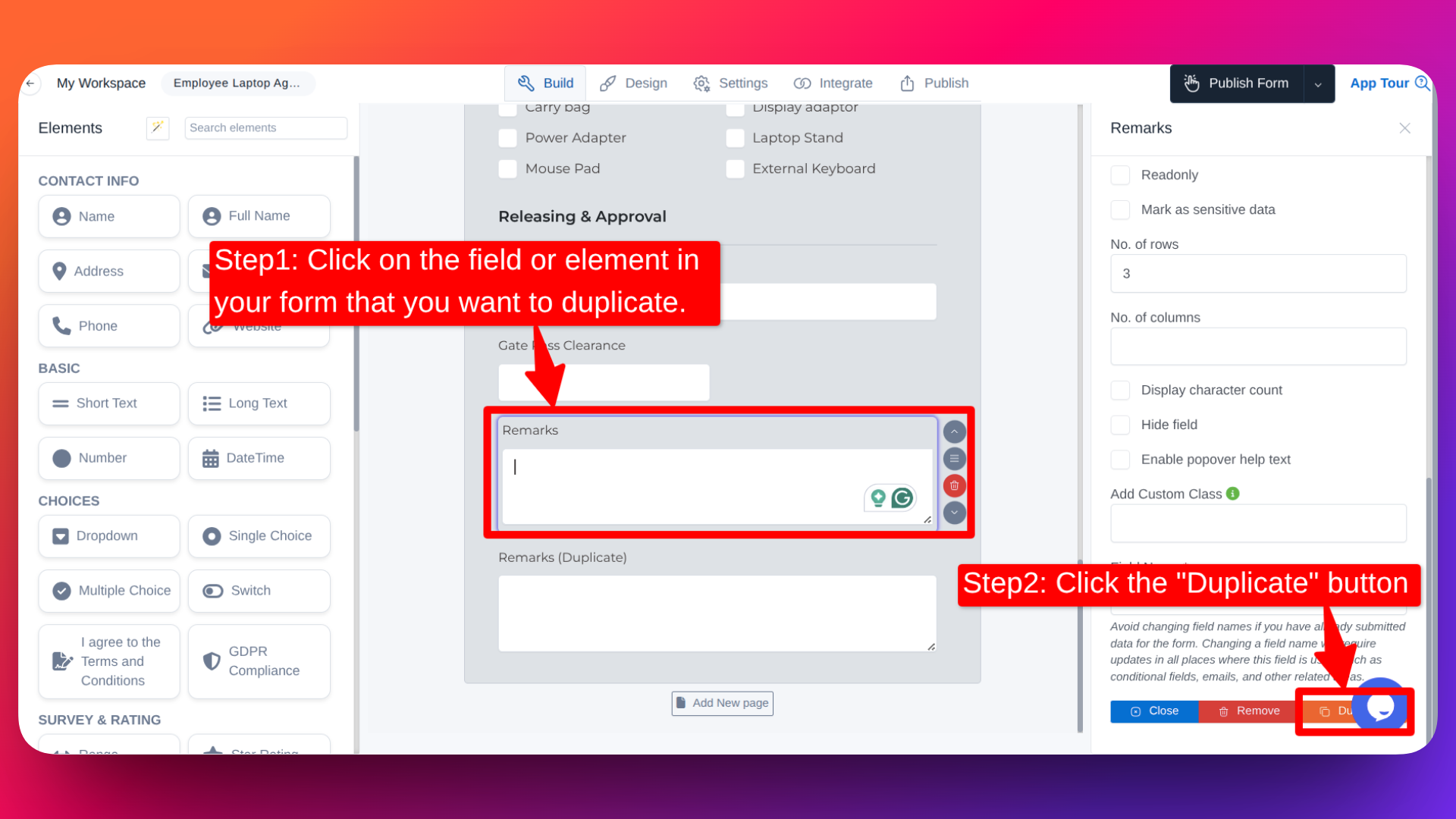
Select the field
- Click on the field or element in your form that you want to duplicate.
Open field settings
- Once selected, the field’s settings/customization panel will open on the right-hand side.
Scroll to the bottom
- Scroll down to the end of the settings panel.
Click “Duplicate”
- Click the Duplicate button located at the bottom-right of the panel.
✅ A copy of the selected field will be created instantly.
What Happens After Duplicating?
- The duplicated field will appear in the form immediately.
- By default, the new field keeps the same question or field name.
- The text “(Duplicate)” is automatically added to the field name to help you identify it.
How to Rename the Duplicated Field
To change the field name:
- Click on the duplicated field.
- In the right-hand customization panel, find the Question option.
- Edit the text and remove “(Duplicate)”.
- Enter a name that fits your needs.
Customize the Duplicated Field
Just like any other field, you can fully customize the duplicated one, including:
- Changing the field label or question
- Adding or editing placeholder text
- Adding help text
- Setting prefix and suffix
- Applying advanced validations
- Setting a default value
- Adjusting other field-specific settings
tip
Duplicating fields is one of the fastest ways to build complex forms in FormNX. Use it whenever you need consistency across multiple questions.