🔞 Age Verification in Forms
Age verification is crucial for ensuring that your content or services are accessed by an audience of an appropriate age. Below, you'll find a step-by-step guide on how to enable and customize age verification for your forms, along with practical use cases to illustrate its importance.
How to Enable Age Verification in Forms ?
Adding age verification to your forms is a straightforward process in FormNX. Here’s how you can do it:
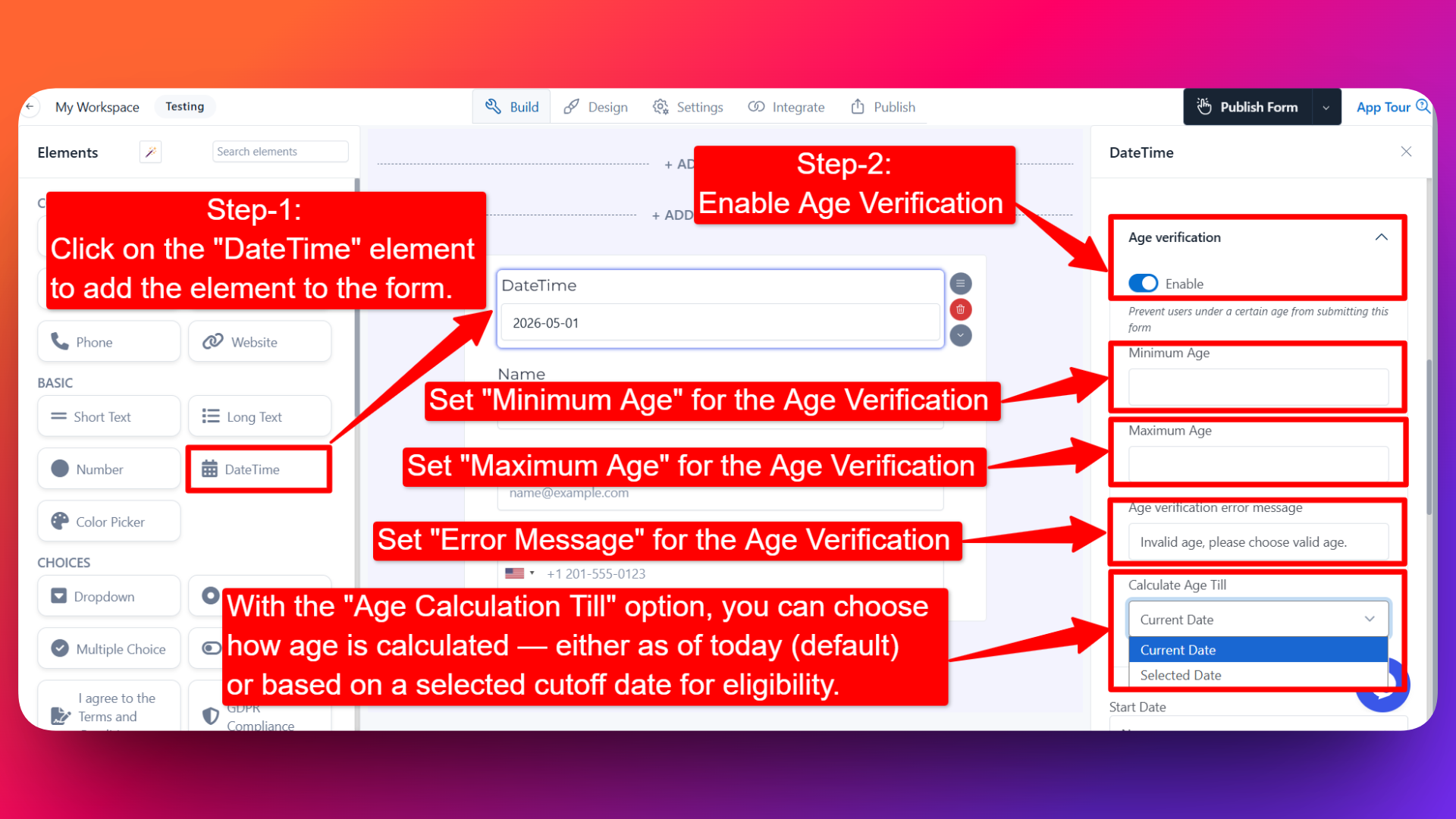
- Select the DateTime Field Element:
Begin by adding or selecting a DateTime field element to your form. This element allows users to input a date and time.
- Enable Age Verification Option:
Within the DateTime field settings, you will find an option for age verification. Toggle this option to enable age verification for the form.
- Configure Age Verification Settings:
Once enabled, options will appear for configuring age verification:
- Minimum Age: Set the minimum age required for form submission.
- Maximum Age: Optionally, set a maximum age limit.
- Age Calculation Till: Choose the date the user's age should be calculated against (see below).
- Error Message: Customize the error message that will be displayed if the user's age does not meet the specified criteria.
Age Calculation Till
By default, FormNX calculates a respondent's age as of the day they submit the form. With the Age Calculation Till option, you can change this so that age is calculated against a specific cutoff date instead — exactly the way real-world eligibility rules usually work.
You'll see two options:
- Current Date (default): Age is calculated from the user's date of birth up to today's date (the date the form is being submitted).
- Selected Date: A date picker appears, letting you choose any future or past cutoff date. The user's age will be calculated as of that specific date — not the submission date.
Example: If you set the cutoff to Dec 31, 2026 and a user submits the form on May 1, 2026, FormNX will calculate how old the user will be on Dec 31, 2026 (based on their date of birth) and validate that against your minimum/maximum age rules.
When to Use "Selected Date"
This is useful any time eligibility is tied to a fixed date rather than the submission date:
- Youth Sports & Football Leagues: U-12, U-15, U-18 tournaments typically require players to be within an age bracket as of a season cutoff date (e.g., "must be under 15 as of Dec 31, 2026"), not as of the registration day.
- Summer Camp Registration: Camps often define age groups based on the camper's age on the first day of camp, so kids whose birthday falls between registration and the start date are still placed correctly. See the summer camp registration form guide for a worked example using this option.
- School & Kindergarten Admissions: Many school systems require a child to turn a certain age by a fixed cutoff (e.g., "must be 5 years old by September 1, 2026") to qualify for a grade.
- Scholarship & Competition Eligibility: Essay contests, science fairs, and academic scholarships frequently cap age "as of the application deadline" or "as of the award date".
- Pageants & Talent Shows: Age categories (Junior, Teen, Adult) are usually decided by the contestant's age on the event date.
- Driver's Education & License Programs: Some programs require students to reach a minimum age by the program start date, not the signup date.
- Military Academy or Cadet Program Enrollment: Eligibility is checked against the intake date, which can be months after the application is submitted.
- Internship & Graduate Program Applications: Some programs cap age as of the program start date or the academic year start.
Use Cases:
- Age-Restricted Content Access:
- Example: A website selling alcohol requires users to confirm they are of legal drinking age before accessing product pages. Age verification in forms ensures compliance with legal requirements.
- Event Registration:
- Example: An event registration form for a 21-and-over concert requires attendees to verify their age before purchasing tickets. Age verification prevents underage attendees from registering.
- Membership Applications:
- Example: A gym membership application form requires applicants to confirm they are above a certain age to qualify for membership. Age verification ensures that only eligible applicants can sign up.