👋 Welcome Page
The Welcome Page is the first screen your users will see when they open your form. It’s a great way to greet them, set the tone, and provide context before they start filling out the form.
Follow the steps below to add or customize a Welcome Page for your form:
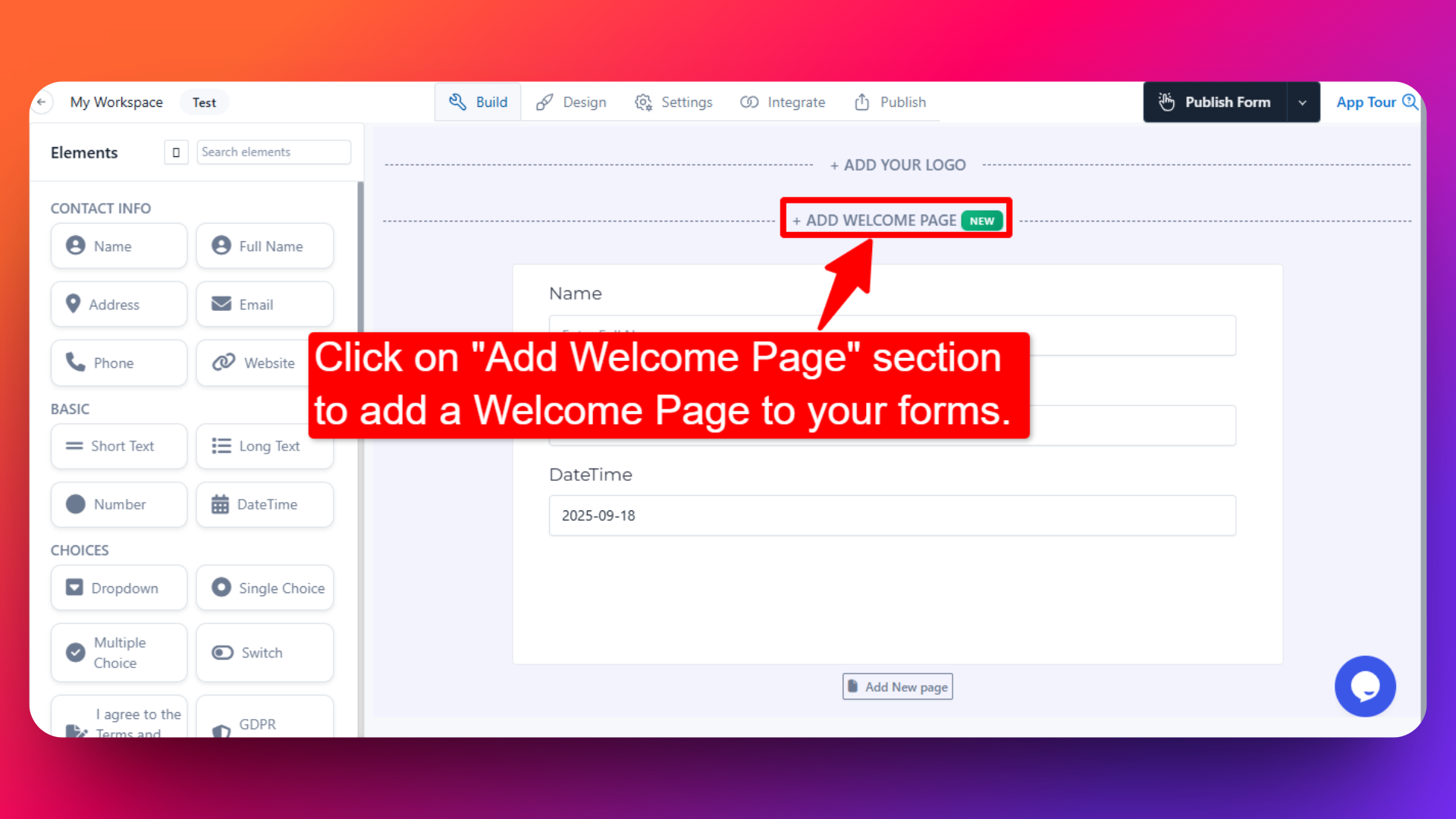
Step 1: Add a Welcome Page
- At the top of your form, click on “Add Welcome Page”.
- You’ll find this option just below the “Add your Logo” section.
Step 2: Customize Your Welcome Page
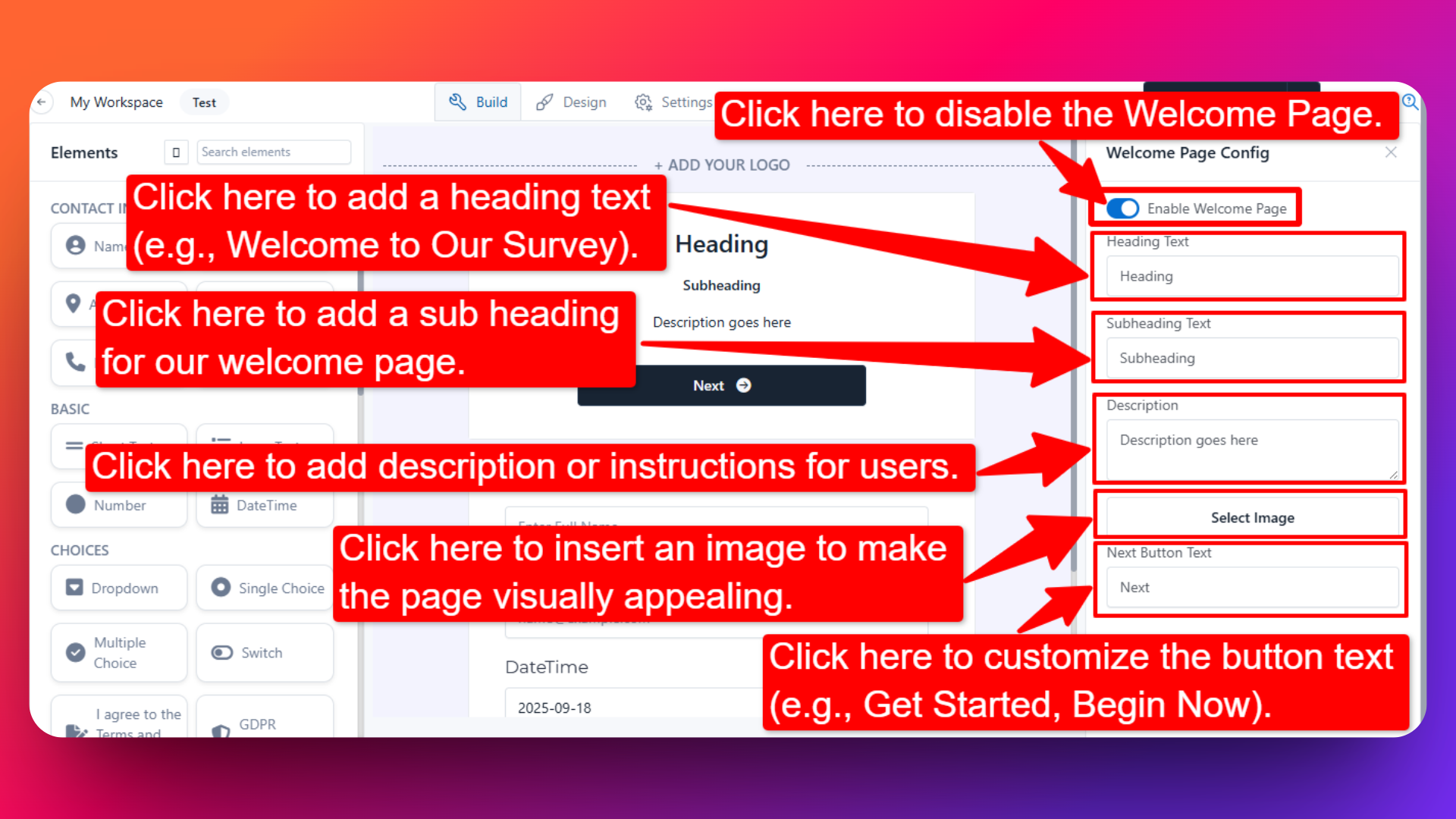
Once added, you can customize your Welcome Page using the panel on the right-hand side. Here, you’ll see options to:
- Heading Text - Add a title for your form (e.g., Welcome to Our Survey).
- Subheading Text - Add a short supporting line or tagline.
- Description - Provide more details or instructions for your users.
- Image - Upload or insert an image to make the page visually appealing.
- Next Button Text - Customize the button text (e.g., Get Started, Begin Now).
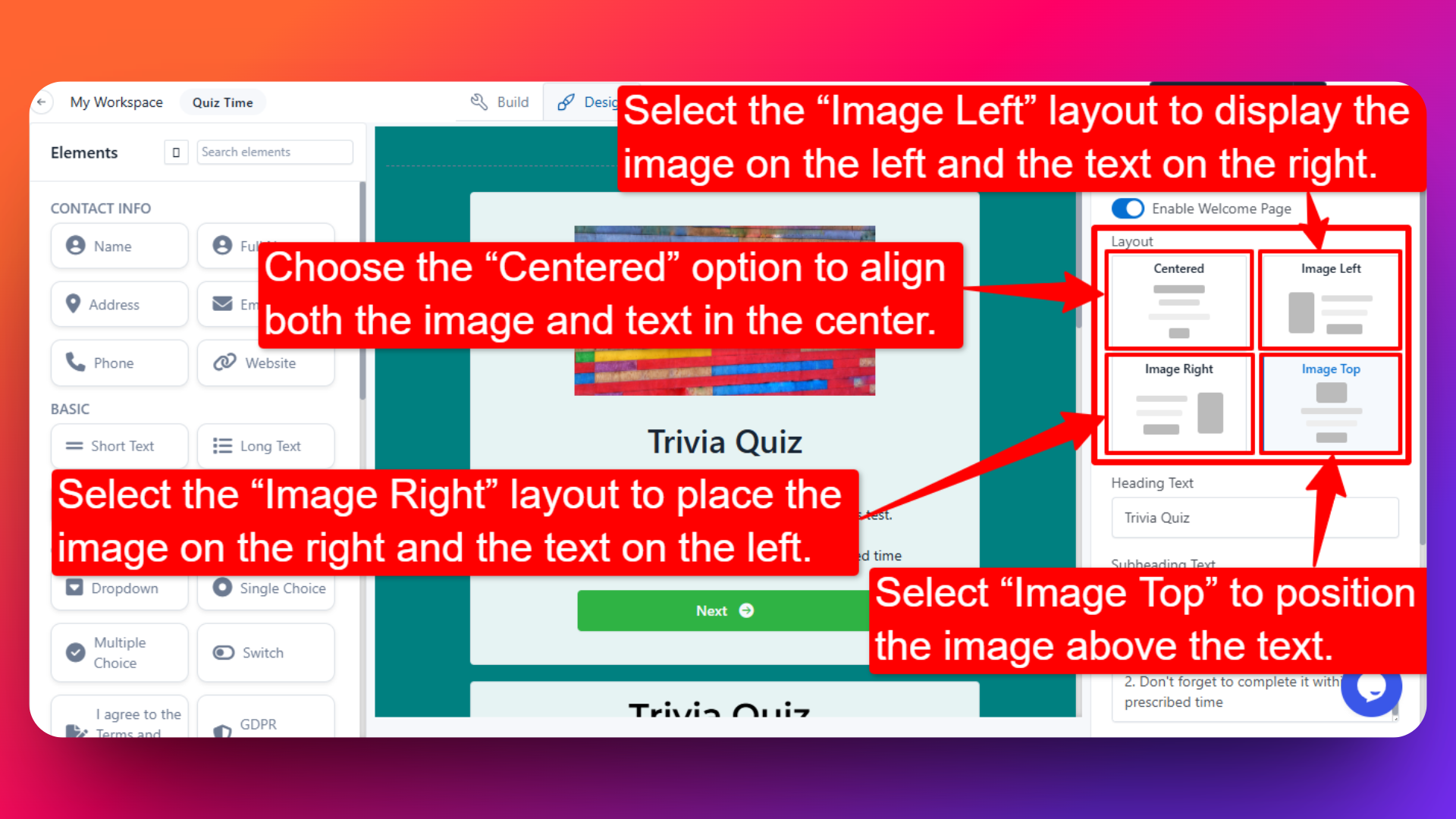
Layout Options: In addition to text and images, you can also choose how your Welcome Page content is displayed. The Layout option is available with the following choices:
- Centered - Text and image are centered, with the image shown below the text.
- Image Left - The image appears on the left side, with the text on the right.
- Image Right - The image appears on the right side, with the text on the left.
- Image Top - The image appears at the top, with the text displayed below it.
How to Disable the Welcome Page
If you don’t want to use a Welcome Page:
- Go to the top of the right-hand side panel.
- Toggle off the Welcome Page option to disable it.
A well-designed Welcome Page makes your form look professional and encourages users to complete it.
FAQs
Q1: Is the Welcome Page required for every form?
No, it’s optional. You can disable it anytime if you prefer your form to start directly with the first question.
Q2: Can I change the Welcome Page later?
Yes, you can update the heading, sub heading, description, image, and button text at any time. Just click on the Welcome Page and edit it in the right-hand panel.
Q3: What kind of image should I use?
We recommend using a simple and clear image (like your logo or a relevant illustration) that matches the purpose of your form.
Q4: Can I remove only the image but keep the text?
Yes, the image is optional. If you don’t upload one, the Welcome Page will only display the text and button.