🔢 Number Field
The Number Field element in FormNX lets you collect numeric input from users. Unlike a regular text field, the Number Field accepts only numbers — no letters or special characters — making it perfect for collecting ages, quantities, prices, scores, and any other numeric data.
📌 How to Add the Number Field to Your Form
Follow these simple steps:
- Open the Form Builder.
- On the left hand side, you'll see the Elements section.
- Find the Number field element.
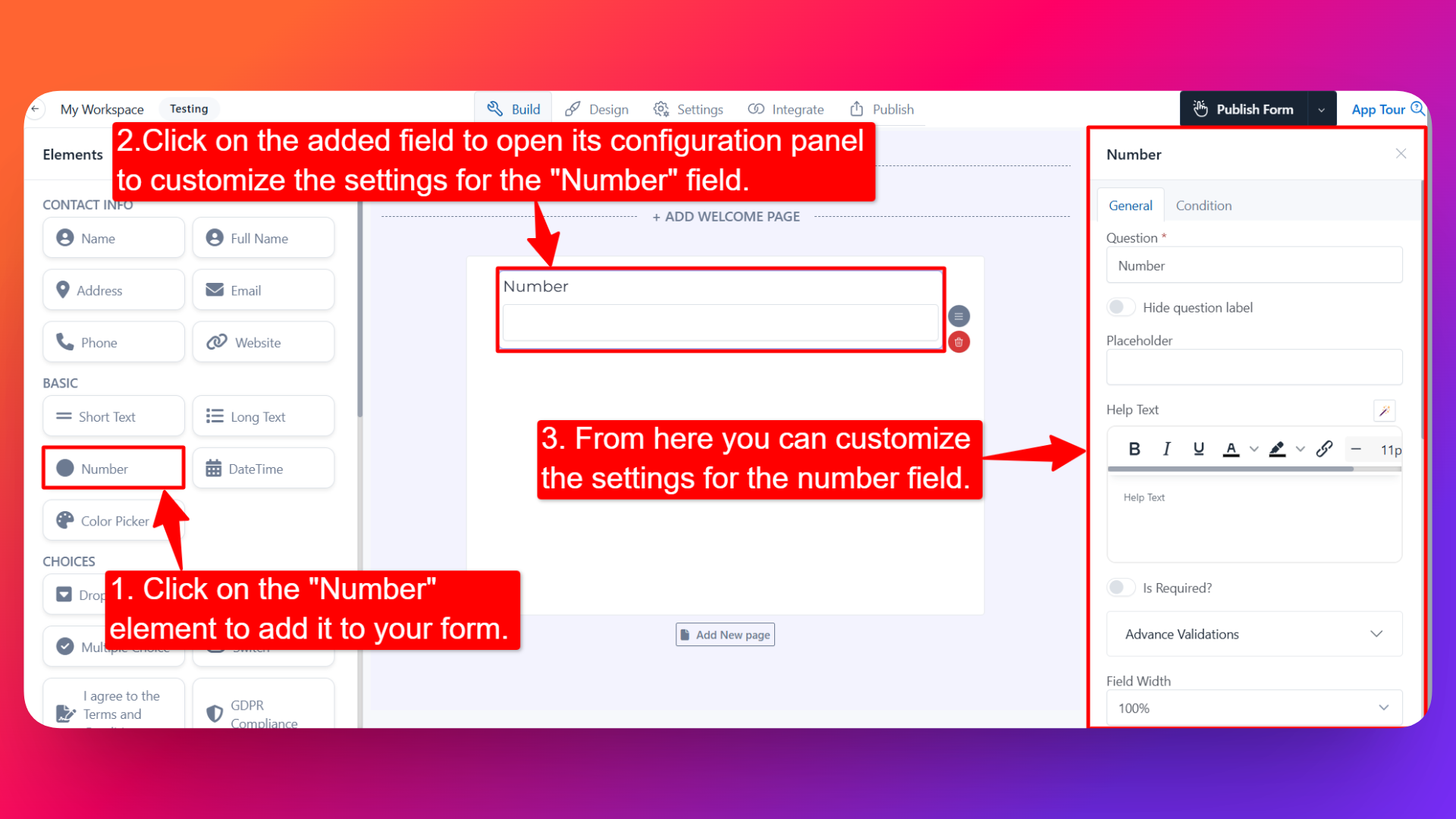
- Drag and drop the element onto your form OR click on the element to add it automatically.
Once added, the Number Field will appear in your form layout, ready to be customized.
⚙️ How to Configure the Number Field
To customize the field:
- Click on the Number element in your form.
- The configuration panel will open on the right hand side.
The Number Field shares the same configuration options as the Short Text Input Field. You can configure the following options:
- Question Label ✏️
- Add the question or label that users will see for this field.
- Example:
- "What is your age?"
- "Enter the quantity"
- Is Required ✅
- Enable the Is Required option to make the field mandatory.
- Users won't be able to submit the form unless they enter a number.
- Help Text 📝
- Add a short instruction or hint below the field to guide users.
- Example: "Enter a value between 1 and 100."
- Hide Label 🙈
- Enable the Hide Label option to hide the question label while keeping the input field visible.
- Advanced Validations 🔎
- Add custom validation rules such as minimum value, maximum value, or specific number ranges.
- Ensures users enter numbers that meet your requirements.
- Field Width 📐
- Adjust the width of the field to control how it appears on the form.
- Useful when placing multiple fields side by side.
- Prefix & Suffix Icons 🎨
- Add an icon at the beginning (prefix) or end (suffix) of the field.
- Example: Adding a 💲 prefix for a price field or a % suffix for a percentage field.
- Default Value 🎯
- Pre-fill the field with a default numeric value.
- Useful when most users would enter the same number, or when suggesting a typical value.
- Read Only 🔒
- Mark the field as Read Only so users can see the number but cannot edit it.
- Sensitive Data 🛡️
- Mark the field as Sensitive Data to handle the response with extra care (such as masking it in submissions).
- Useful for personal or financial information.
- Hide Field 👻
- Hide the field from being visible to users in the form.
- Useful when storing data via integrations or conditional logic without showing the field directly.
👤 How It Works for Users
When users open the form:
- They'll see the Number Field with the label and any help text you've configured.
- They can enter only numeric values — the field automatically blocks letters and other non-numeric characters.
- If validations are added (like minimum/maximum value), they'll be prompted to correct invalid entries.
- If the field is marked as required, they must enter a number before submitting the form.
💡 Common Use Cases
- Collecting age in registration forms
- Capturing quantity in order or purchase forms
- Accepting prices, amounts, or budgets in business forms
- Getting scores or ratings in feedback or test forms
- Recording employee count, attendance, or any numeric data in HR or survey forms
The Number Field ensures you collect clean, numeric-only data — saving you from manually cleaning responses later.