🖼️ Image Upload Field
The Image Upload element in FormNX is a dedicated field for collecting images from your users — photos, screenshots, profile pictures, design references, and more. Unlike the generic File Upload, this field is purpose-built for images, giving your form a cleaner UX when only images are expected.
📌 How to Add the Image Upload Field to Your Form
Follow these simple steps:
- Open the Form Builder.
- On the left hand side, you'll see the Elements section.
- Find the Image Upload element.
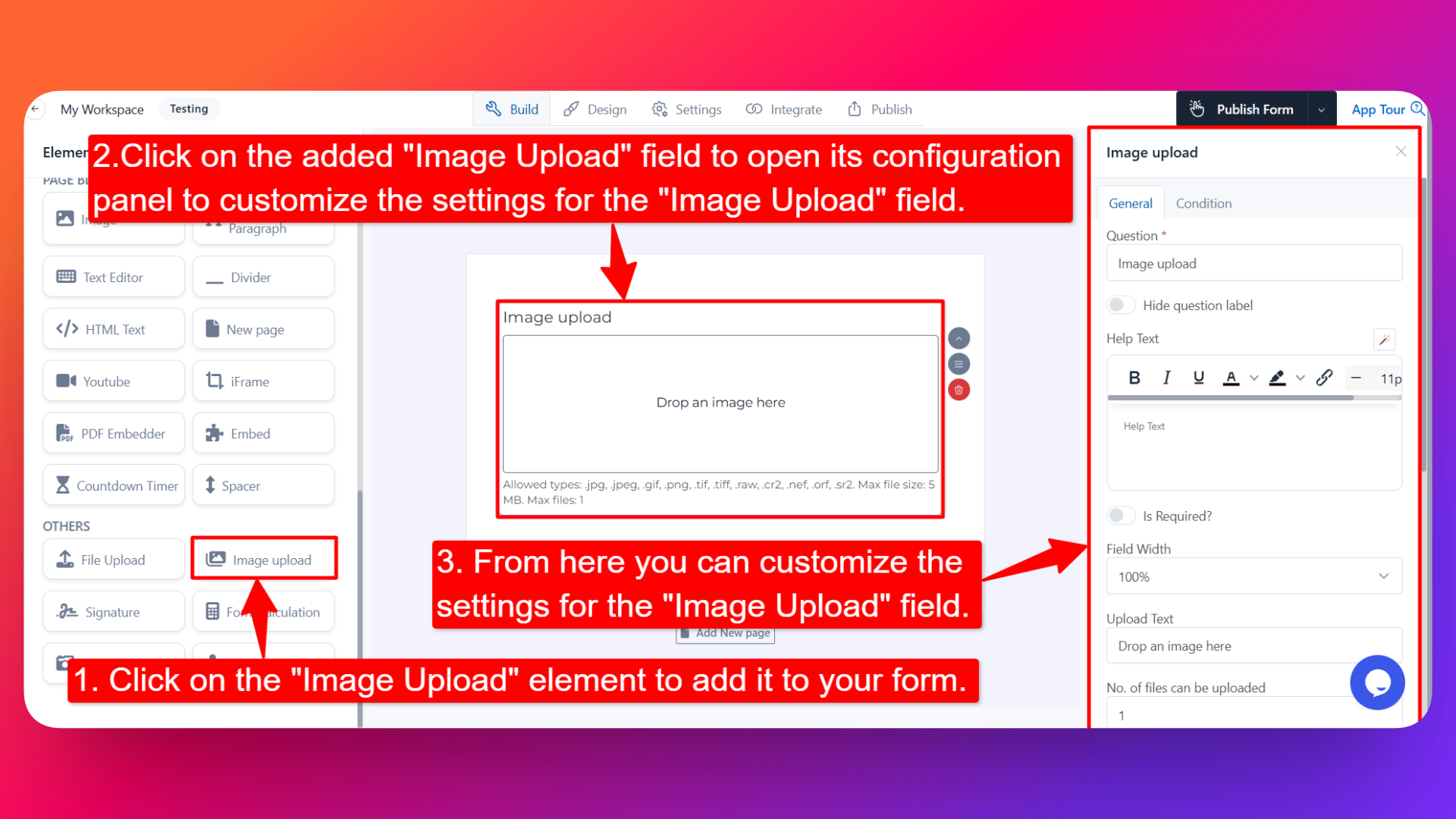
- Drag and drop the element onto your form OR click on the element to add it automatically.
Once added, the Image Upload field will appear in your form layout, ready to be customized.
⚙️ How to Configure the Image Upload Field
To customize the field:
- Click on the Image Upload element in your form.
- The configuration panel will open on the right hand side.
You can configure the following options:
- Question Label ✏️
- Add the question or label that users will see for this field.
- Example:
- "Upload your profile picture"
- "Attach product photos"
- Hide Question Label 🙈
- Enable this option to hide the question label while keeping the upload area visible.
- Help Text 📝
- Add a short instruction or hint below the field to guide users.
- Example: "Upload a clear, well-lit photo. Max size: 5 MB."
- Is Required ✅
- Enable the Is Required option to make the field mandatory.
- Users won't be able to submit the form unless they upload at least one image.
- Field Width 📐
- Adjust the width of the field to control how it appears on the form.
- Upload Text 📤
- Customize the text shown inside the upload area.
- Example: "Drop an image here", "Click to upload your photo", "Browse images".
- Number of Files Can Be Uploaded 🔢
- Set the maximum number of images a user can upload.
- Default: 1 image.
- Increase this value if you want users to attach multiple images in a single submission (e.g., product gallery, before-and-after photos).
- File Size Limit 📏
- Set the maximum allowed image size (in MB).
- Helps prevent oversized uploads that can slow down submissions and consume storage.
- Example: 2 MB for profile pictures, 10 MB for high-resolution product photos.
- Send as E-mail Attachment 📧
- Enable this option to automatically attach uploaded images to the notification email sent when the form is submitted.
- Useful when you want images to land directly in your inbox without needing to log into FormNX to download them.
- Sensitive Data 🛡️
- Mark the field as Sensitive Data to handle the response with extra care (such as masking it in submissions).
- Field Name 🏷️
- Add a unique field name (used internally for integrations, exports, and conditional logic).
- Popover Help Text 💡
- Enable this option to show your help text inside an info icon next to the field.
- When users click on the info icon, the popover will appear with the help text you added.
- Keeps your form clean while still giving users access to extra guidance when they need it.
👤 How It Works for Users
When users open the form:
- They'll see the image upload area with your custom upload text and any help text you've configured.
- They can click on the upload area (or drag and drop) to attach an image.
- If multiple uploads are allowed, they can attach up to the number you've set.
- Images exceeding the size limit are rejected with an error.
- If "Send as E-mail Attachment" is enabled, images automatically flow into your notification emails.
- If the field is marked as required, they must upload at least one image before submitting.
💡 Common Use Cases
- Profile picture collection — Capture user avatars for accounts, directories, or member listings.
- Product photo submission — Let sellers upload product images for marketplaces or listings.
- Damage and claim forms — Collect photo evidence for insurance claims or warranty requests.
- Design and creative briefs — Let clients share reference images and inspiration.
- Real estate listings — Capture property photos from agents or homeowners.
- Event photo submissions — Collect attendee or contest photos.
- Identity verification forms — Collect ID photos, document scans, or selfies for verification.
The Image Upload field gives your form a focused, image-friendly experience — making it the right choice whenever you only need visuals from your users.