📋 How to Create PDFs from Your Forms in FormNX
FormNX makes it easy to generate professional, downloadable PDF documents from your online forms. Whether you want to use a pre-designed template, start from scratch, or get help from AI - it’s all possible in just a few clicks. This is useful when you want a printable version of the submitted data or a formal document based on form responses.
Follow this step-by-step guide to create PDFs using your FormNX forms:
✅ Step 1: Create a Form
Before you can generate a PDF, you need to create a form:
Go to the My Forms section in your FormNX dashboard.
Click on New Form or select an existing form you've already created.
Design your form using the form builder.
Once your form is ready and saved, move to the next step for PDF creation process.
🧾 Step 2: Create a PDF for your Form
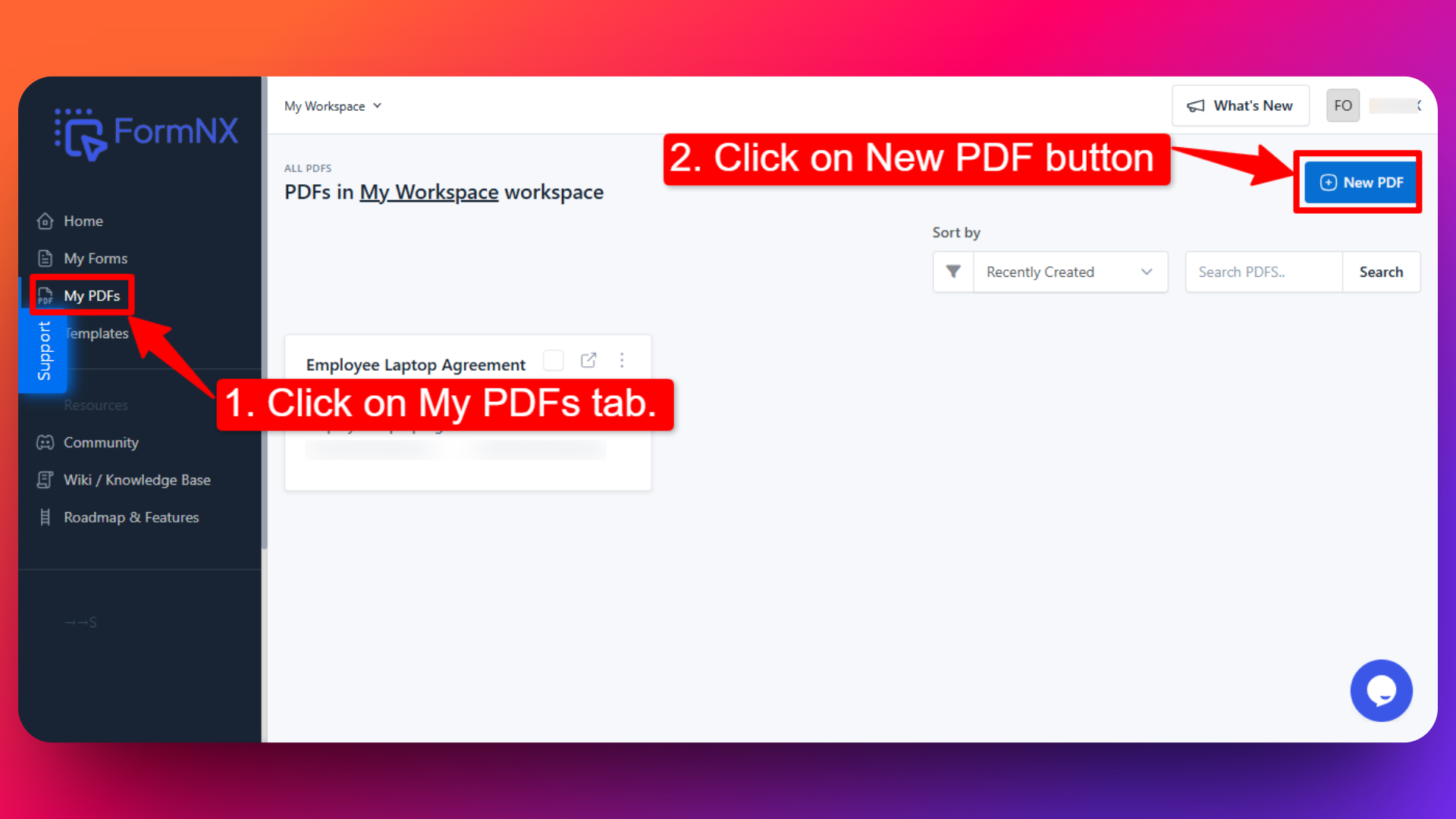
Navigate to the My PDFs tab and click on it.
Click the New PDF button located in the top right corner to begin creating a PDF version of your form.
🛠️ Step 3: Choose How You Want to Create the PDF
After clicking New PDF, you’ll see a pop-up with three options to create your PDF:
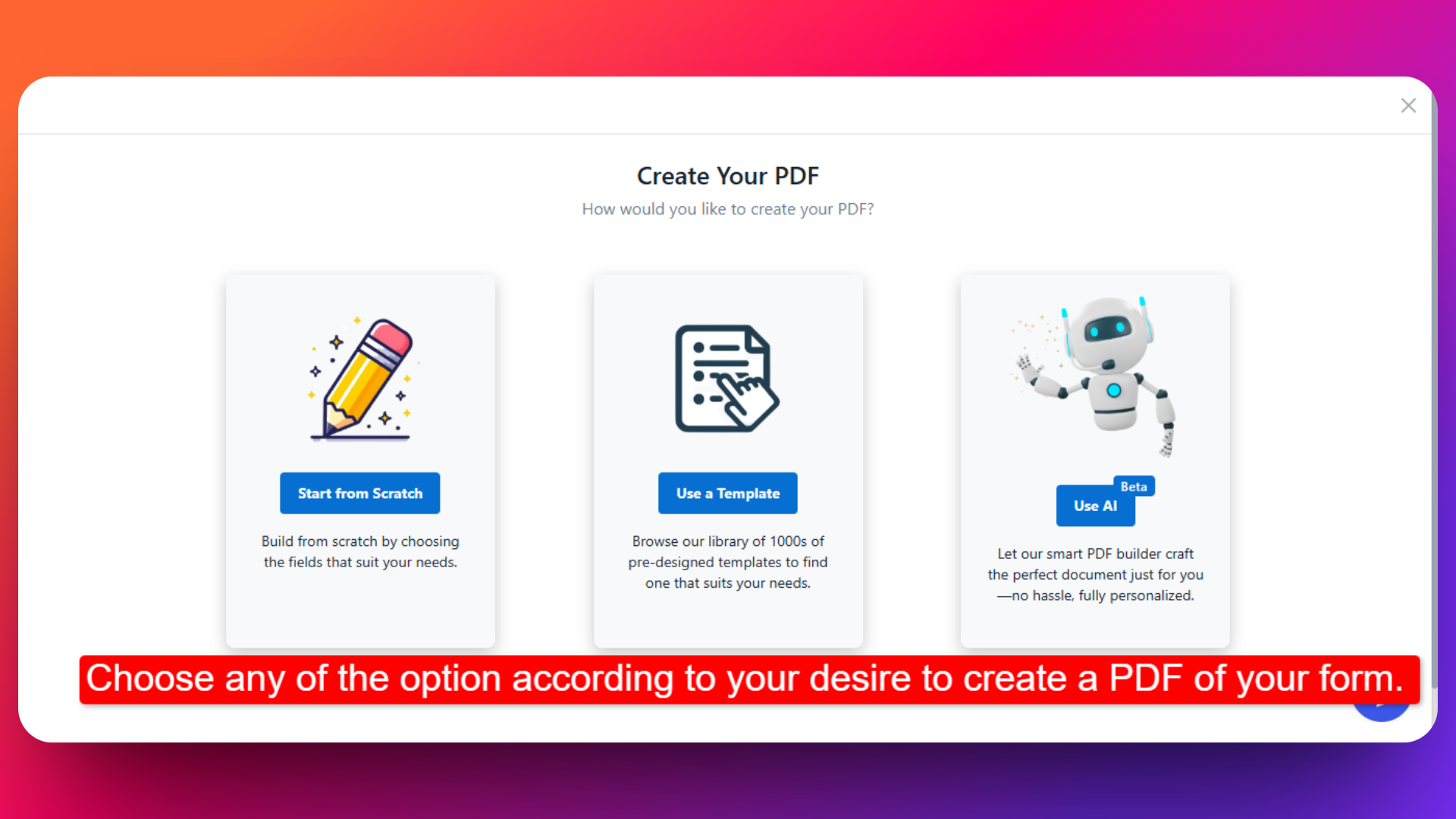
Start from Scratch
Enter a PDF Name.
Select the form you want to link the PDF to.
Click Create PDF to begin designing your PDF from scratch.
Use a Template
Browse through hundreds of professionally designed PDF templates.
Select a template that fits your purpose.
Choose the form you want to associate with the PDF.
Click Create PDF.
Use AI to Generate PDF
Enter details of your PDF.
Select the form you want to use.
Click Create PDF and let the AI build a tailored PDF layout for you.
📝 Why Do You Need to Select a Form for the PDF?
When creating a PDF, you must select a form so that:
All the form fields are available for use in the PDF.
You can click and add form fields into your PDF layout as needed.
You can insert field tags, which dynamically display the user’s responses in the generated PDF (e.g., Name, Email, etc.).
This ensures each generated PDF reflects the actual data submitted through the form.
Example: If your form has a field like “Name,” you can add the name tag like __namefield__ in the PDF, and it will be replaced with the actual response when the form is submitted.
- You can customize the layout/design of your PDF inside the PDF builder.
- Rearrange, delete, or style elements as needed.
- PDFs can be downloaded, printed, or sent via email after form submission.
✅ Use Cases: Why Use PDF Templates?
PDF templates are especially helpful for creating polished, professional, and legally compliant documents. Here are some common use cases:
1. Client Agreements or Contracts 📝
Generate a signed copy of a service agreement or contract using form data and signatures.
2. Order Confirmations 🛒
Send customers a formal PDF receipt or summary of their order, including quantity, price, and delivery details.
3. Invoices & Payment Acknowledgements 🧾
Attach a branded PDF invoice or payment record when someone submits a billing or payment form.
4. Consent & Medical Forms ⚕️
For clinics or wellness centers, generate a downloadable record of consent or intake forms signed by patients.
5. Student Registration Forms 🎓
Provide students or guardians with a filled-out and signed PDF copy of school registration or admission forms.
6. Work Orders or Service Requests 🛠️
Create structured PDFs of service requests, maintenance logs, or job work orders to share with teams or clients.
7. Application Forms 📋
Whether for jobs, clubs, or scholarships - let applicants receive a copy of their submitted application in PDF format.
📌You can design and manage your custom PDFs in the My PDFs section. Add logos, adjust formatting, and include only the fields you want!