📄 Using the PDF Feature in FormNX
FormNX lets you generate and attach custom PDFs to your form submission emails, and also download them later from your submission list. This guide will walk you through how to attach PDFs to emails and how to download them.
📎 How to Attach a PDF to Form Submission Emails
You can easily attach a custom PDF (created in the My PDFs tab) to the emails sent after someone submits your form. Follow these steps:
✅ Step-by-Step Instructions:
1. Go to Your Form:
Click on the My Forms tab in the sidebar.
Find the form you want to add a PDF to and click the Edit option.
2. Open Form Settings:
Inside the form builder, click the Settings tab at the top.
Then click on the Email section.
3. Attach Your PDF:
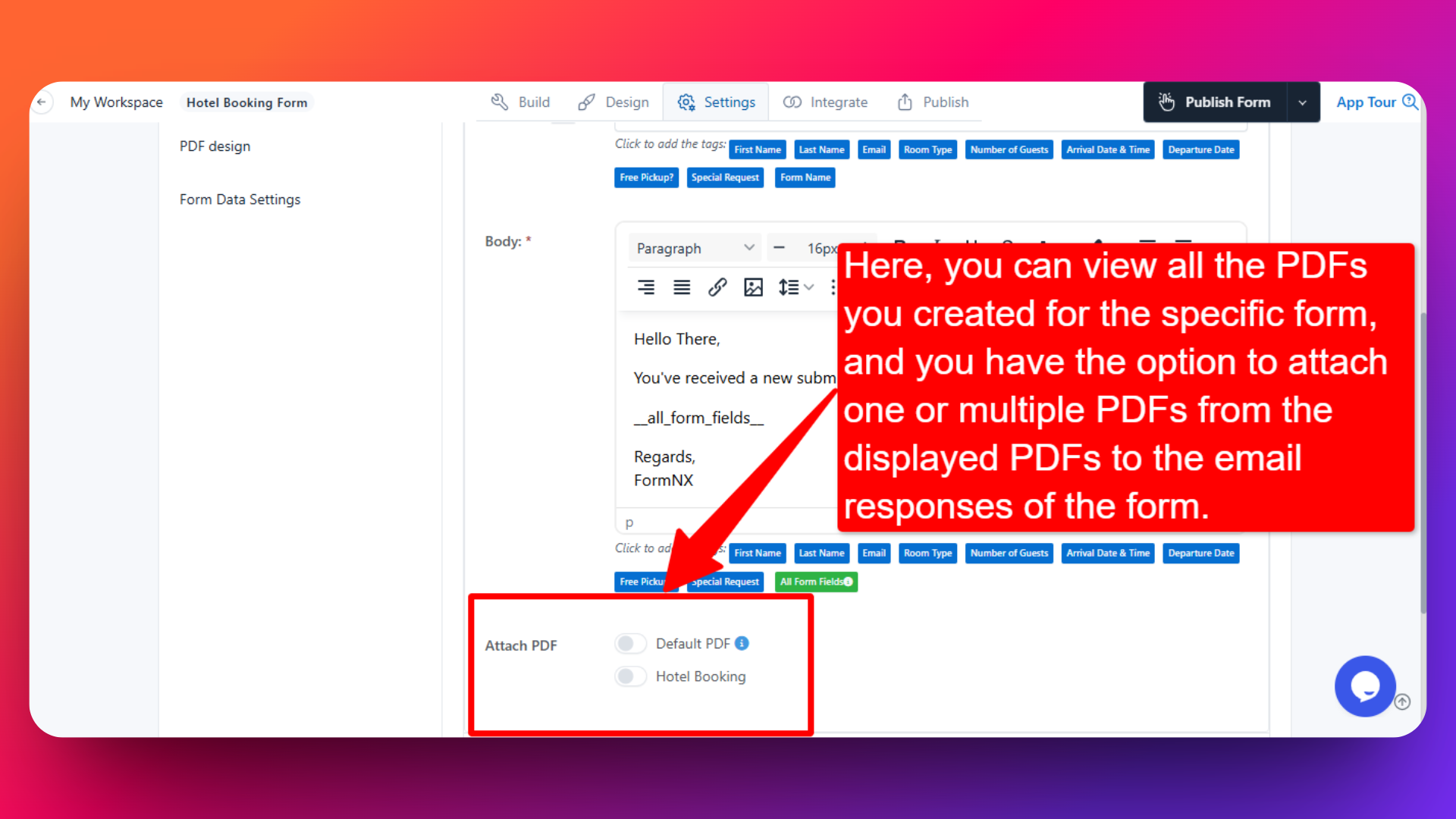
In the email section, you will see two options: Email to Me and Email to Responder.
Under each of these, you’ll find an Attach PDF option.
There you will see a list of available PDFs - including the Default PDF and any custom PDFs you’ve created for that form.
4. Select Your PDFs:
Choose one or multiple PDFs from the shown PDFs to attach to the email.
You can attach as many PDFs as you need from the ones listed.
📥 How to Download PDFs from Form Submissions
You can download submitted PDFs anytime from your form’s submission list.
✅ Steps to Download PDFs:
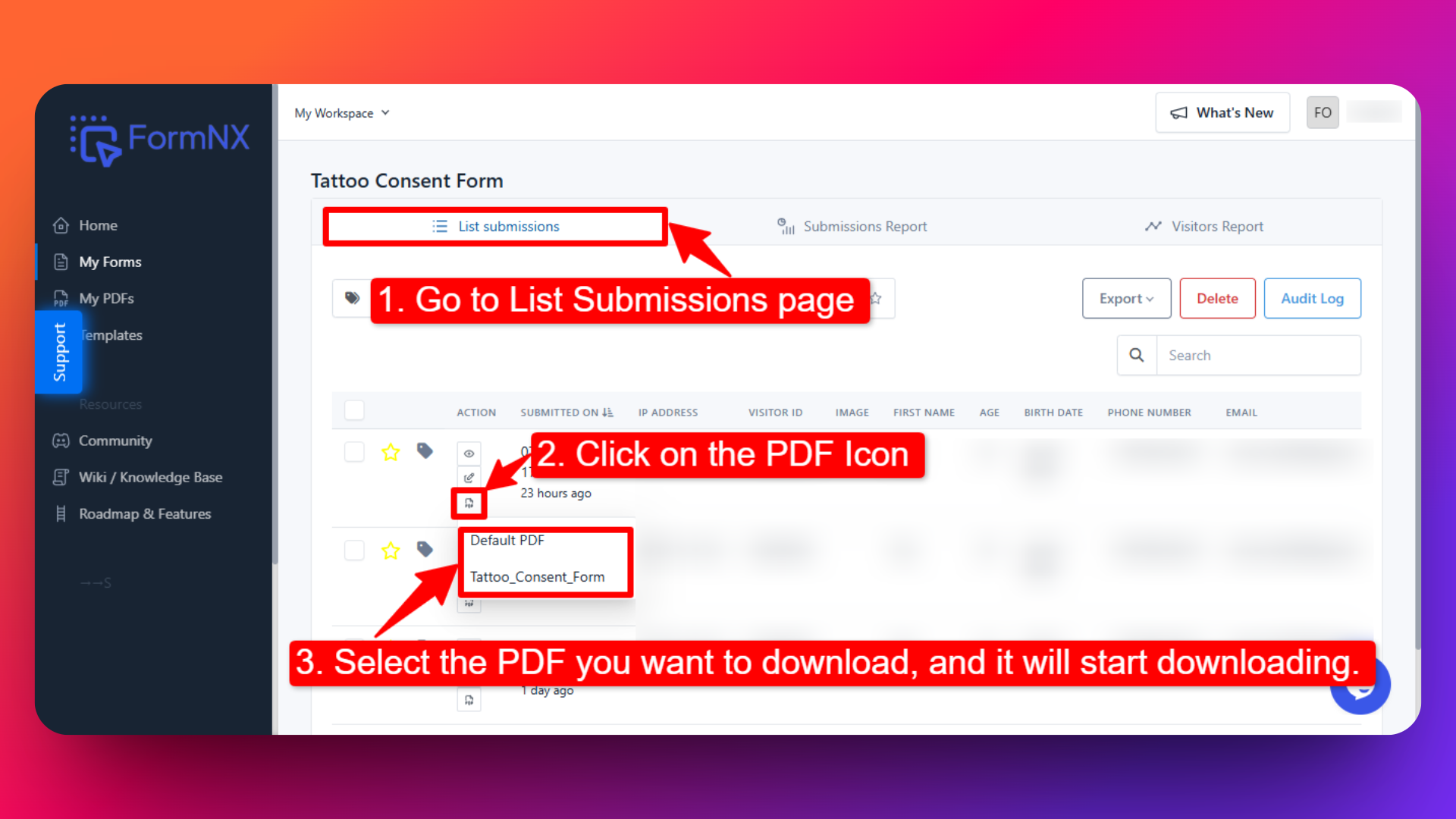
1. Go to List Responses page:
- In the sidebar, click My Forms, find your form, and go to the "List Responses" page of the form.
2. Click the PDF Icon:
- For each submission, you’ll see a PDF icon. Click on it.
3. Choose a PDF to Download:
A list of PDFs will appear - including the default and any custom PDFs you’ve created.
Select the PDF you want to download, and it will start downloading immediately and saved to your device.
If you move your form to a different workspace, the PDFs associated with that form will also move with it.