⭐ Star Rating
The Star Rating element in FormNX lets users rate their experience visually by clicking on stars. It's the most familiar rating format on the web — instantly understood by users — and is perfect for product reviews, service feedback, satisfaction scores, and any rating-based question.
📌 How to Add the Star Rating to Your Form
Follow these simple steps:
- Open the Form Builder.
- On the left hand side, you'll see the Elements section.
- Find the Star Rating element.
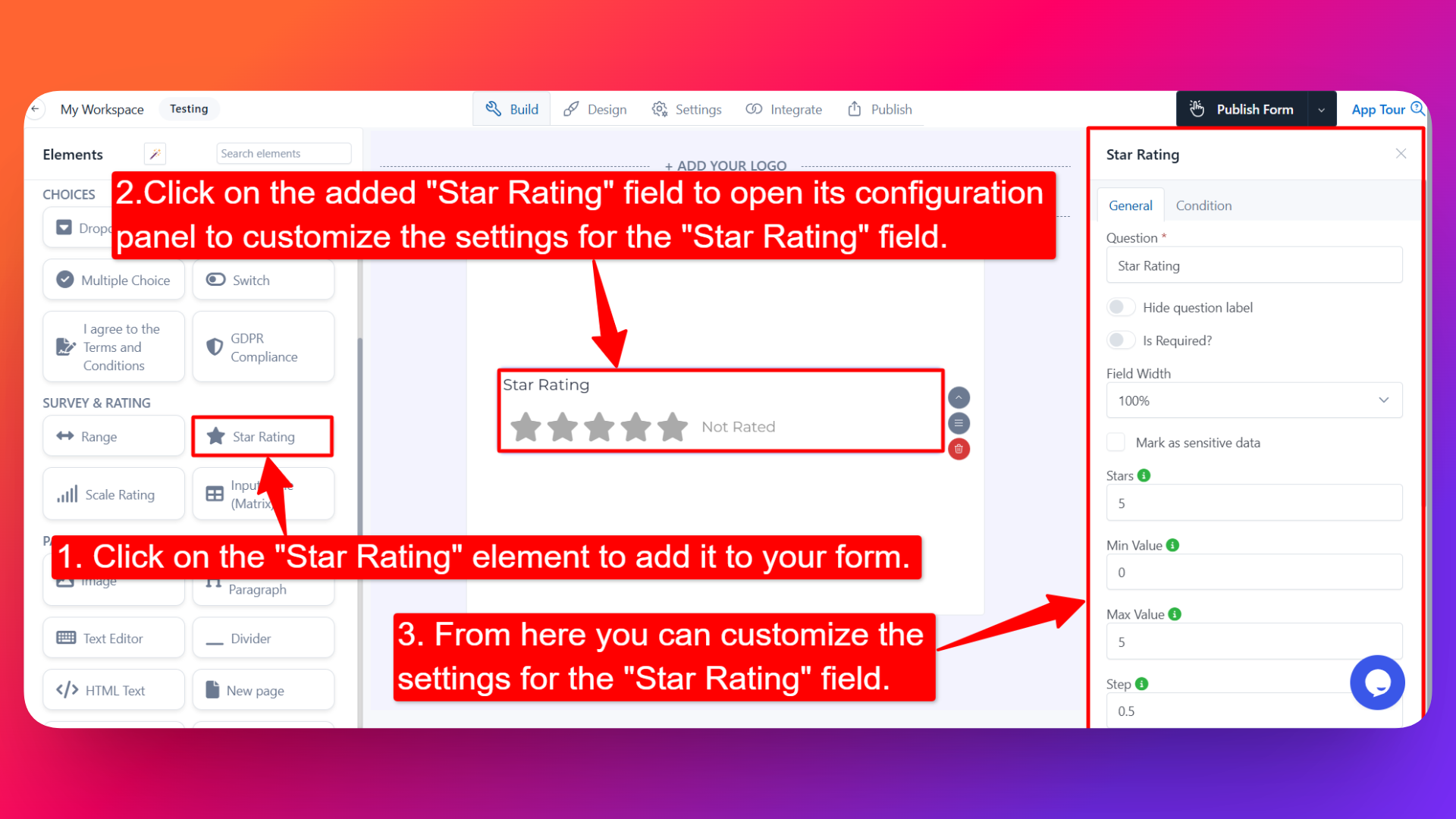
- Drag and drop the element onto your form OR click on the element to add it automatically.
Once added, the Star Rating will appear in your form layout, ready to be customized.
⚙️ How to Configure the Star Rating Field
To customize the field:
- Click on the Star Rating element in your form.
- The configuration panel will open on the right hand side.
You can configure the following options:
- Question Label ✏️
- Add the question or label that users will see for this field.
- Example:
- "How would you rate our service?"
- "Rate your overall experience"
- Hide Question Label 🙈
- Enable this option to hide the question label while keeping the stars visible.
- Help Text 📝
- Add a short instruction or hint below the field to guide users.
- Example: "Click on the stars to rate."
- Is Required ✅
- Enable the Is Required option to make the field mandatory.
- Users won't be able to submit the form unless they click at least one star.
- Field Width 📐
- Adjust the width of the field to control how it appears on the form.
- Sensitive Data 🛡️
- Mark the field as Sensitive Data to handle the response with extra care (such as masking it in submissions).
- Stars ⭐
- Set the number of stars to display in the rating.
- Most common is 5 stars, but you can configure any number based on your rating scale.
- Min Value 🔽
- The minimum value for the rating input.
- This is the lowest rating value when no stars are selected or highlighted.
- Max Value 🔼
- The maximum value for the rating input.
- This is the highest rating value when all stars are selected or highlighted.
- Step 📐
- The step to increment the rating when each star is clicked.
- Example: If Step = 1, each star adds 1 to the rating. If Step = 0.5, half-star ratings are allowed.
- Display Type ↔️
Choose the direction in which the stars are displayed:
- Left to Right — Stars are displayed from left to right (default Western reading order).
- Right to Left — Stars are displayed from right to left (useful for RTL languages or specific design preferences).
- Size 📏
Pick the size of the stars to match your form design:
- Extra Small — Compact stars, useful in tight layouts.
- Small — Slightly larger, subtle stars.
- Medium — Standard size, fits most forms.
- Large — More prominent stars, ideal for review forms.
- Extra Large — Highly visible stars, perfect when the rating is the form's main focus.
- Field Name 🏷️
- Add a unique field name (used internally for integrations, exports, and conditional logic).
- Popover Help Text 💡
- Enable this option to show your help text inside an info icon next to the field.
- When users click on the info icon, the popover will appear with the help text you added.
- Keeps your form clean while still giving users access to extra guidance when they need it.
👤 How It Works for Users
When users open the form:
- They'll see the configured number of stars displayed in the direction you chose.
- They can click on a star to set their rating — the stars will highlight up to the one they clicked.
- If Step = 0.5, they can give half-star ratings by clicking on the left or right side of a star.
- If popover help text is enabled, users can click the info icon to see additional guidance.
- If the field is marked as required, they must give a rating before submitting.
💡 Common Use Cases
- Product reviews — "How would you rate this product?"
- Service feedback — "Rate your experience with our team."
- Course or content ratings — Let students/readers rate lessons, articles, or videos.
- Restaurant and venue reviews — Capture star-based ratings for food, ambiance, service.
- Event feedback — Quick post-event satisfaction ratings.
- NPS / CSAT surveys — Visual rating for customer satisfaction scores.
The Star Rating field gives your form a familiar, intuitive rating experience — users know exactly what to do the moment they see stars.