☑️ Multi Choice - Checkbox
The Multiple Choice (Checkbox) element in FormNX lets users select one or more options from a list of choices. It's perfect for "select all that apply" style questions where users may pick multiple answers — interests, features, available days, preferences, and more.
Like the Single Choice field, it also supports card-style designs and image options, so you can build rich, visually engaging multi-select questions.
📌 How to Add the Multiple Choice Checkbox Field to Your Form
Follow these simple steps:
- Open the Form Builder.
- On the left hand side, you'll see the Elements section.
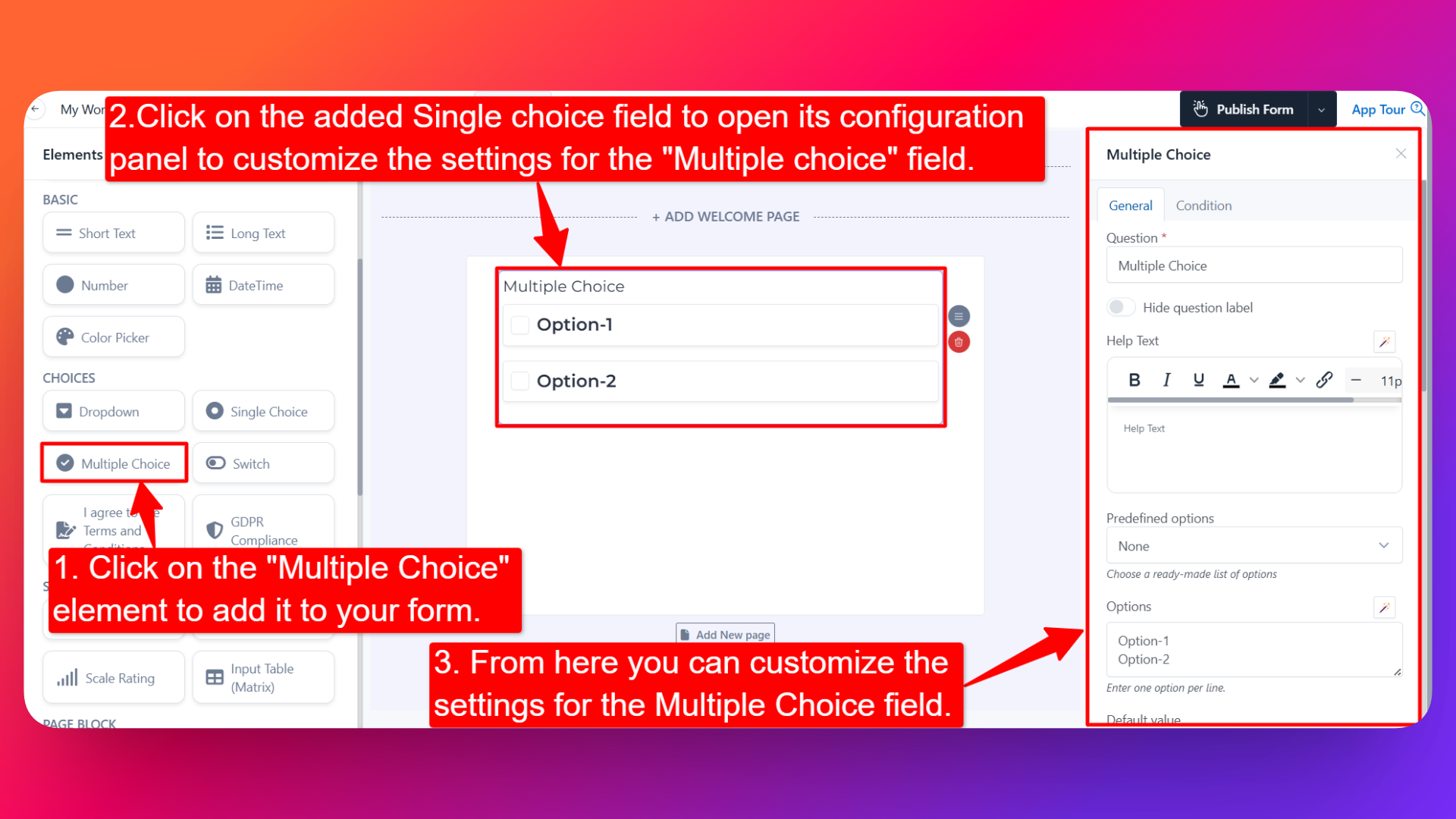
- Find the Multiple Choice (Checkbox) element.
- Drag and drop the element onto your form OR click on the element to add it automatically.
Once added, the Multiple Choice field will appear in your form layout, ready to be customized.
⚙️ How to Configure the Multiple Choice Checkbox Field
To customize the field:
- Click on the Multiple Choice element in your form.
- The configuration panel will open on the right hand side.
You can configure the following options:
- Question Label ✏️
- Add the question or label that users will see for this field.
- Example:
- "Which features are you interested in?"
- "Select all the days you're available"
- Help Text 📝
- Add a short instruction or hint below the field to guide users.
- Example: "Select all the options that apply."
- Hide Question Label 🙈
- Enable this option to hide the question label while keeping the checkbox options visible.
- Is Required ✅
- Enable the Is Required option to make the field mandatory.
- Users won't be able to submit the form unless they select at least one option.
- Field Width 📐
- Adjust the width of the field to control how it appears on the form.
- Predefined Options 📋
- Choose a ready-made list of options instead of creating one from scratch.
- Common predefined lists include Gender, Weekdays, Months, and more.
- If you don't need any predefined list, simply select None and add your own options manually.
- Add Options 📝
- Manually add the choices you want users to select from.
- You can add, remove, and reorder options easily.
- Default Value 🎯
- Pre-select one or more default options so they appear checked when the form loads.
- Useful when most users would select the same options.
- Design 🎨
Select how the options will be visually presented:
- Simple — Standard checkboxes with text labels.
- Card — Each option appears as a clickable card, ideal for visually engaging multi-select questions (e.g., feature selection, interest picker).
- Option Settings ⚙️
Inside Option Settings, you'll find two powerful options:
Calculation Value 🧮 — When enabled, you can assign a specific value to each option. This is extremely useful when:
- You want to assign different prices to different add-ons (e.g., Extra Storage = $5, Priority Support = $10, Custom Domain = $15) — the total can be calculated based on which boxes the user checks.
- You're building a scoring or assessment form where each selected option adds to the total score.
- You want to drive dynamic, cumulative pricing that updates as users check more options.
Enable Image Option 🖼️ — When enabled, you can attach an image to each option, turning your checkbox field into a visual multi-select picker.
- First, select the image size: Small, Medium, or Large.
- Then add the image for each option of the field.
- Perfect for product bundles, multi-item pickers, and visual feature selection.
For step-by-step instructions on adding images to your multiple/single choice options, see: How to Add Image in Options for Multiple/Single Choice Questions.
- Sensitive Data 🛡️
- Mark the field as Sensitive Data to handle the response with extra care (such as masking it in submissions).
- Shuffle Option 🔀
- Enable this option to display the choices in random order each time the form loads.
- Useful for surveys and research where you want to avoid order bias.
- Spread to Column 📊
- Spread the options into multiple columns on a single row.
- You can show 2 or 3 options per row (or more) based on your layout needs.
- Keeps long option lists compact and visually balanced.
- Option Prefixing 🔤
- Add prefixes in front of each option for cleaner presentation. Choose from:
- No Prefixing — Options appear as-is.
- Letter Based (A, B, C, D) — Options are prefixed with letters.
- Number Based (1, 2, 3, 4) — Options are prefixed with numbers.
- Field Name 🏷️
- Add a unique field name (used internally for integrations, exports, and conditional logic).
👤 How It Works for Users
When users open the form:
- They'll see all the options laid out (as simple checkboxes, cards, or image cards depending on your design choice).
- They can check as many options as they want — multiple selections are allowed by design.
- If shuffle is enabled, the option order will be randomized each time the form loads.
- If the field is marked as required, they must select at least one option before submitting.
💡 Common Use Cases
- "Select all that apply" questions — Interests, hobbies, skills, services needed.
- Add-on selection — Optional product or service add-ons with calculation values for cumulative pricing.
- Available days picker — Use the Weekdays predefined list to capture availability.
- Feature selection — Let users pick the features they want from a list.
- Visual product bundles — Show product images and let users pick multiple items (with Image Option).
- Multi-select survey questions with shuffled options to avoid bias.
The Multiple Choice (Checkbox) field is the go-to element whenever users may select more than one answer — and with cards, images, and calculation values, you can make it as simple or as rich as your form needs.