📜 Terms & Conditions
The Terms & Conditions element in FormNX is a dedicated consent field that lets users confirm they've read and agree to your terms before submitting the form. It also lets you attach a clickable link to your terms page so users can review the full document right from the form — perfect for legal compliance, signups, and contracts.
📌 How to Add the Terms & Conditions Field to Your Form
Follow these simple steps:
- Open the Form Builder.
- On the left hand side, you'll see the Elements section.
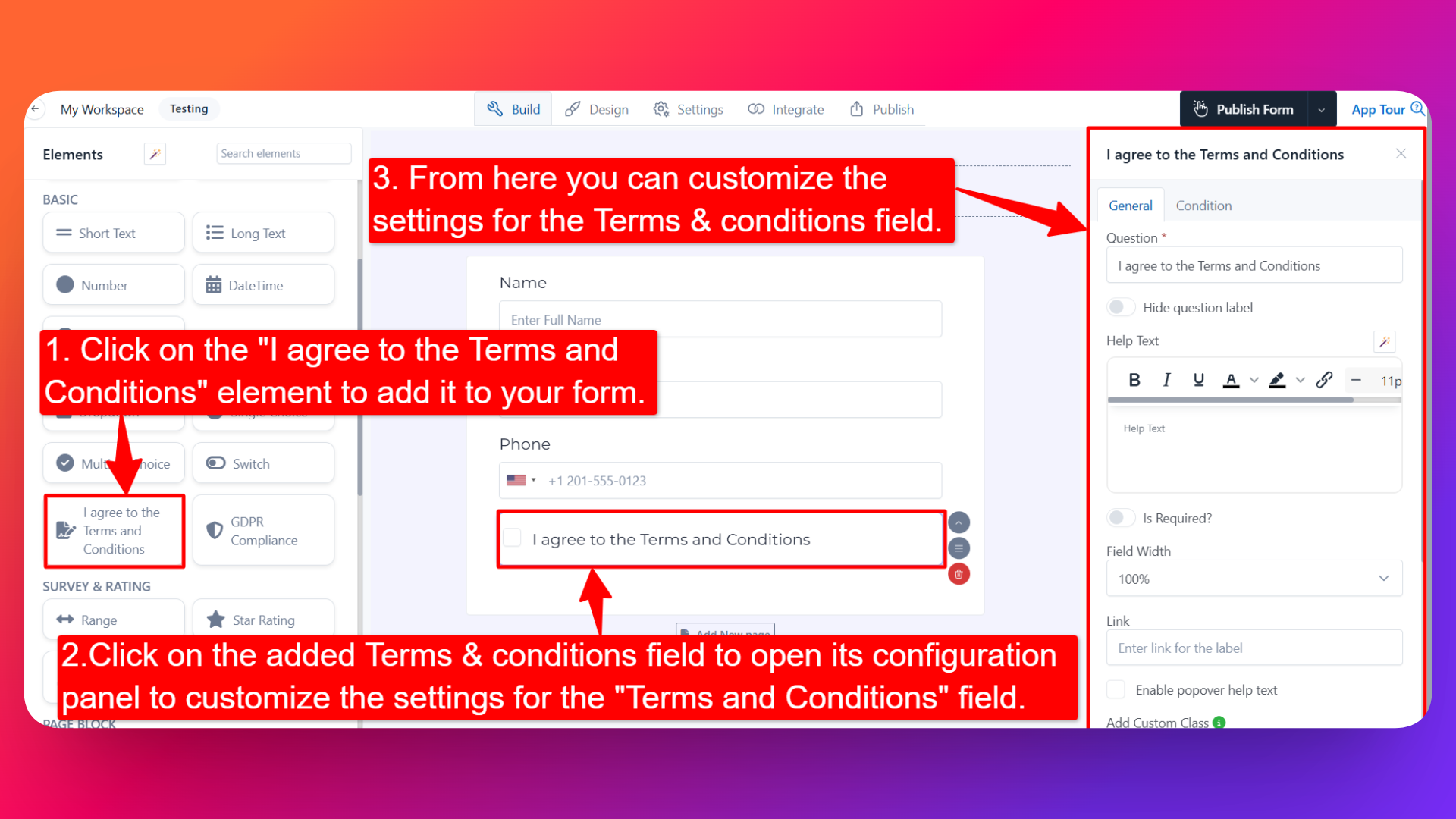
- Find the I Agree to the Terms and Conditions field.
- Click on the field to add it to your form OR drag and drop it into your form.
Once added, the field will appear in your form layout, ready to be customized.
⚙️ How to Configure the Terms & Conditions Field
To customize the field:
- Click on the Terms & Conditions element in your form.
- The configuration panel will open on the right hand side.
You can configure the following options:
- Question Label ✏️
- Add the consent statement that users will see for this field.
- Example:
- "I agree to the Terms and Conditions"
- "I have read and accept the Privacy Policy"
- Help Text 📝
- Add a short instruction or hint below the field to guide users.
- Example: "Please review the terms before submitting."
- Hide Question Label 🙈
- Enable this option to hide the question label while keeping the checkbox visible.
- Is Required ✅
- Enable the Is Required option to make the field mandatory.
- Users won't be able to submit the form unless they check this field.
- Recommended for all consent and legal-agreement use cases.
- Field Width 📐
- Adjust the width of the field to control how it appears on the form.
- Field Name 🏷️
- Add a unique field name (used internally for integrations, exports, and conditional logic).
- Terms & Conditions Link 🔗
- Add a link to your Terms and Conditions page (or Privacy Policy, License Agreement, etc.).
- This link will appear within the field so users can click it to open and read the full terms document.
👤 How It Works for Users
When users open the form:
- They'll see the consent statement with a checkbox.
- If a link is added, users can click on it to read your full Terms and Conditions.
- They can check the box to confirm their agreement.
- If the field is marked as required, they must check it before submitting the form.
💡 Common Use Cases
- User registration & signup forms — Collect consent before creating accounts.
- Service agreements — Confirm acceptance of service terms before booking.
- Privacy policy acceptance — Comply with GDPR, CCPA, and similar regulations.
- Contract & quote forms — Capture explicit agreement to contract terms.
- Event registration — Ensure attendees agree to event rules and waivers.
- Subscription forms — Confirm acceptance of billing and cancellation terms.
The Terms & Conditions field gives you a clean, compliant way to capture user consent — with the terms document just one click away for full transparency.