⏱️ Countdown Element
The Countdown element in FormNX lets you add a live countdown timer to your form. It counts down to a specific date and time you set, making it perfect for creating urgency around limited-time offers, event registrations, or deadlines.
📌 How to Add the Countdown to Your Form
Follow these simple steps:
- Open the Form Builder.
- On the left hand side, you'll see the Elements section.
- Find the Countdown Timer element.
- Drag and drop the element onto your form OR click on the element to add it automatically.
Once added, the Countdown element will appear in your form layout, ready to be customized.
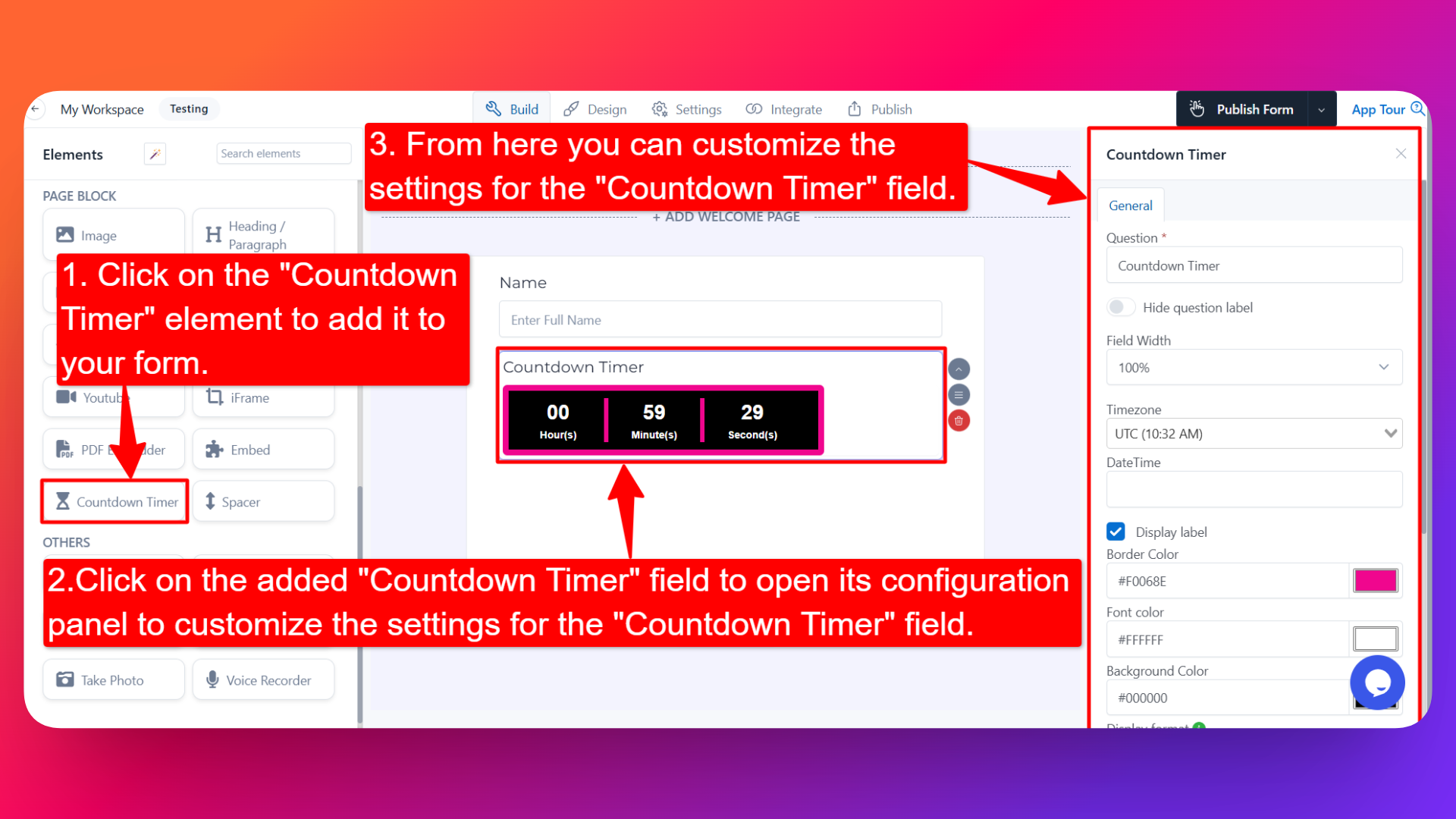
⚙️ How to Configure the Countdown
To customize the Countdown:
- Click on the Countdown element in your form.
- The configuration panel will open on the right hand side.
From here, you can configure the following options:
- Question Label ✏️
- Add a label for the countdown element that will appear above the timer.
- Example: "Offer ends in:" or "Registration closes in:"
- Hide Question Label 🙈
- Enable the Hide Question Label option to hide the label while keeping the countdown timer visible.
- Field Width 📐
- Adjust the width of the element to control how it appears on the form.
- Select Timezone 🌐
- Choose the timezone for the countdown.
- This ensures the countdown is accurate for users regardless of their location.
- Set DateTime 📅
- Set the date and time the countdown should count down to.
- Once this date and time is reached, the countdown will stop at zero.
- Display Label 🔤
Controls how hours, minutes, and seconds are separated in the countdown timer.
- Enabled: Shows a vertical line (
|) between units. Example:1 Hour(s) | 12 Minute(s) | 50 Second(s) - Disabled: Uses a colon (
:) instead and lets you choose the size for the displayed countdown timer: Extra Small, Small, Medium, Large, or Extra Large. Example:1:12:50
- Enabled: Shows a vertical line (
- Border Color 🌈
- Set the border color of the countdown timer to match your form's design.
- Font Color 🖋️
- Set the font color of the countdown numbers and labels.
- Background Color 🎨
- Set the background color of the countdown timer.
- Display Format 🕒
- Choose how the countdown is displayed:
- HMS — Hours : Minutes : Seconds
- MS — Minutes : Seconds
- DHMS — Days : Hours : Minutes : Seconds
- ODHMS — Months : Days : Hours : Minutes : Seconds
- YODHMS — Years : Months : Days : Hours : Minutes : Seconds
- Pick the format that best fits your countdown duration.
- Field Name 🏷️
- Set a custom field name used internally (helpful for identifying the element inside the form builder).
👤 How It Works for Users
When users open the form:
- They'll see a live countdown timer ticking down to the date and time you set.
- The timer updates in real time, creating a sense of urgency.
- The countdown is display-only — users don't need to interact with it.
💡 Common Use Cases
- Creating urgency for limited-time offers in coupon or discount forms.
- Counting down to event start dates in registration or RSVP forms.
- Showing deadlines in application, contest, or submission forms.
- Building anticipation for product launches or sales in lead capture forms.
- Counting down to registration cutoffs or webinar start times.
The Countdown element is a powerful way to create urgency and encourage users to take action before time runs out.