🔤 Heading
The Heading element in FormNX lets you add titles, sub-titles, and section headers to your form. It's a great way to organize your form visually, group related fields together, and guide users through different sections.
📌 How to Add the Heading to Your Form
Follow these simple steps:
- Open the Form Builder.
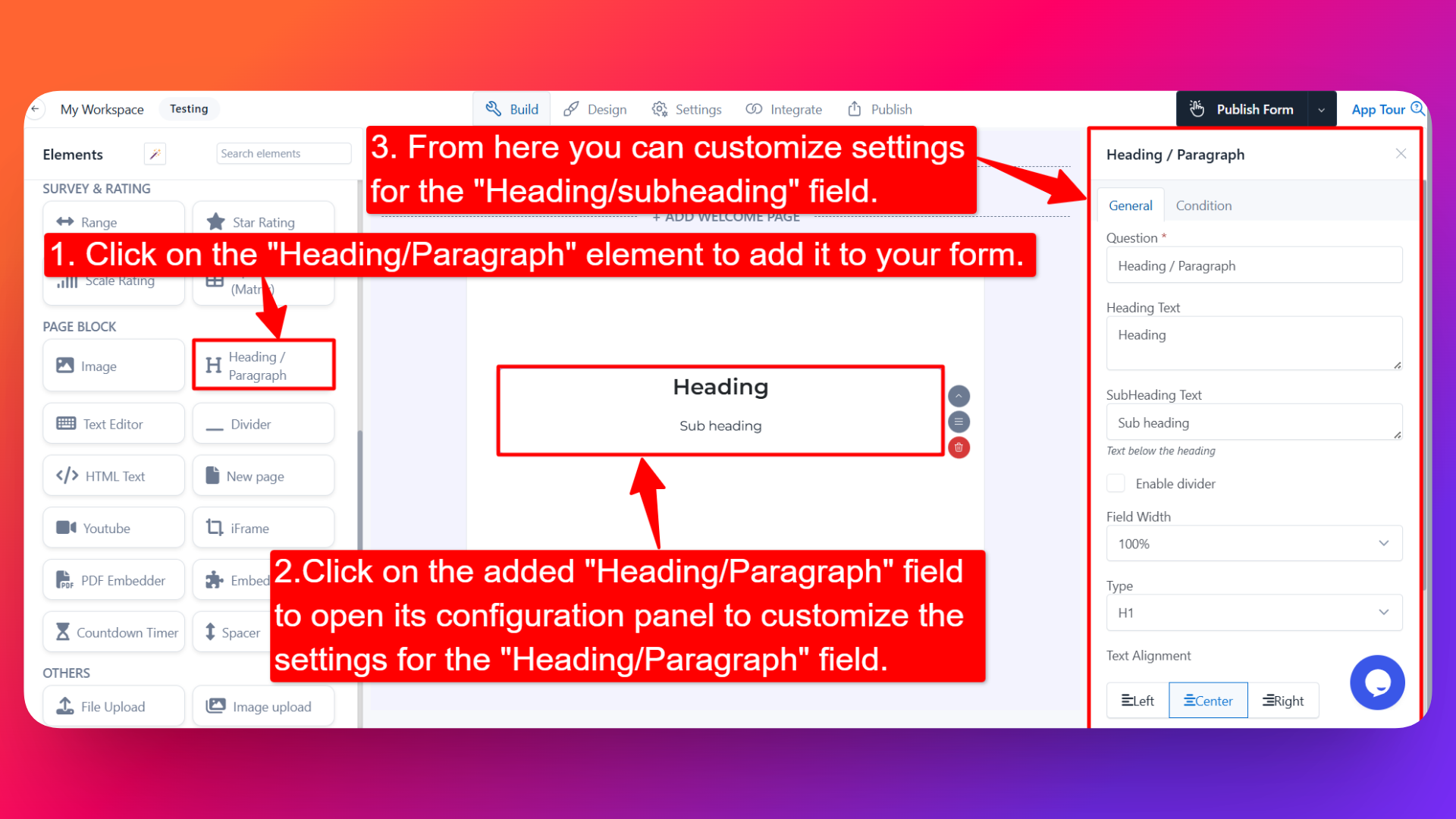
- On the left hand side, you'll see the Elements section.
- Find the Heading element.
- Drag and drop the element onto your form OR click on the element to add it automatically.
Once added, the Heading will appear in your form layout, ready to be customized.
⚙️ How to Configure the Heading
To customize the Heading:
- Click on the Heading element in your form.
- The configuration panel will open on the right hand side.
From here, you can configure the following options:
- Question Label ✏️
- Add an internal label for the heading element.
- This is used to identify the element inside the form builder.
- Heading Text 🔠
- Enter the main heading text that you want to display on the form.
- Example: "Personal Information" or "Contact Details".
- Sub Heading Text 📝
- Enter a smaller sub-heading text that appears below the main heading.
- Useful for adding short descriptions or instructions under the heading.
- Example: "Please fill in the details below to continue."
- Enable Divider ➖
- Enable this option to show a divider line under the heading.
- Useful for visually separating sections of your form.
- Field Width 📐
- Adjust the width of the heading to control how it appears on the form.
- Useful when placing the heading alongside other elements.
- Type 🅰️
- Choose the type of heading style to apply to the text:
- H1 — Largest heading style
- H2
- H3
- H4
- H5
- H6 — Smallest heading style
- Paragraph — Regular paragraph text style
- Pick the style that best fits the importance of the section.
- Text Alignment ↔️
- Set the alignment of the heading text:
- Left
- Center
- Right
- Text Color 🎨
- Choose the color of the heading text to match your form's design or branding.
👤 How It Works for Users
When users open the form:
- They'll see the heading text and sub-heading (if configured) displayed prominently on the form.
- The heading is display-only — users don't need to interact with it.
- It helps them understand the structure of the form and what each section is about.
💡 Common Use Cases
- Adding section titles like "Personal Details", "Address Information", or "Payment Details" in long forms.
- Creating welcome titles at the top of forms (e.g., "Welcome to our Survey").
- Splitting a form into clearly labeled sections to improve readability.
- Adding instructions or context between groups of fields using the sub-heading.
The Heading element helps you organize your form, make it more readable, and create a better experience for your users.