▶️ YouTube
The YouTube element in FormNX lets you embed a YouTube video directly into your form. It's a great way to share intros, tutorials, walk-throughs, or any promotional video content with your users without sending them away from the form.
📌 How to Add the YouTube Element to Your Form
Follow these simple steps:
- Open the Form Builder.
- On the left hand side, you'll see the Elements section.
- Find the YouTube element.
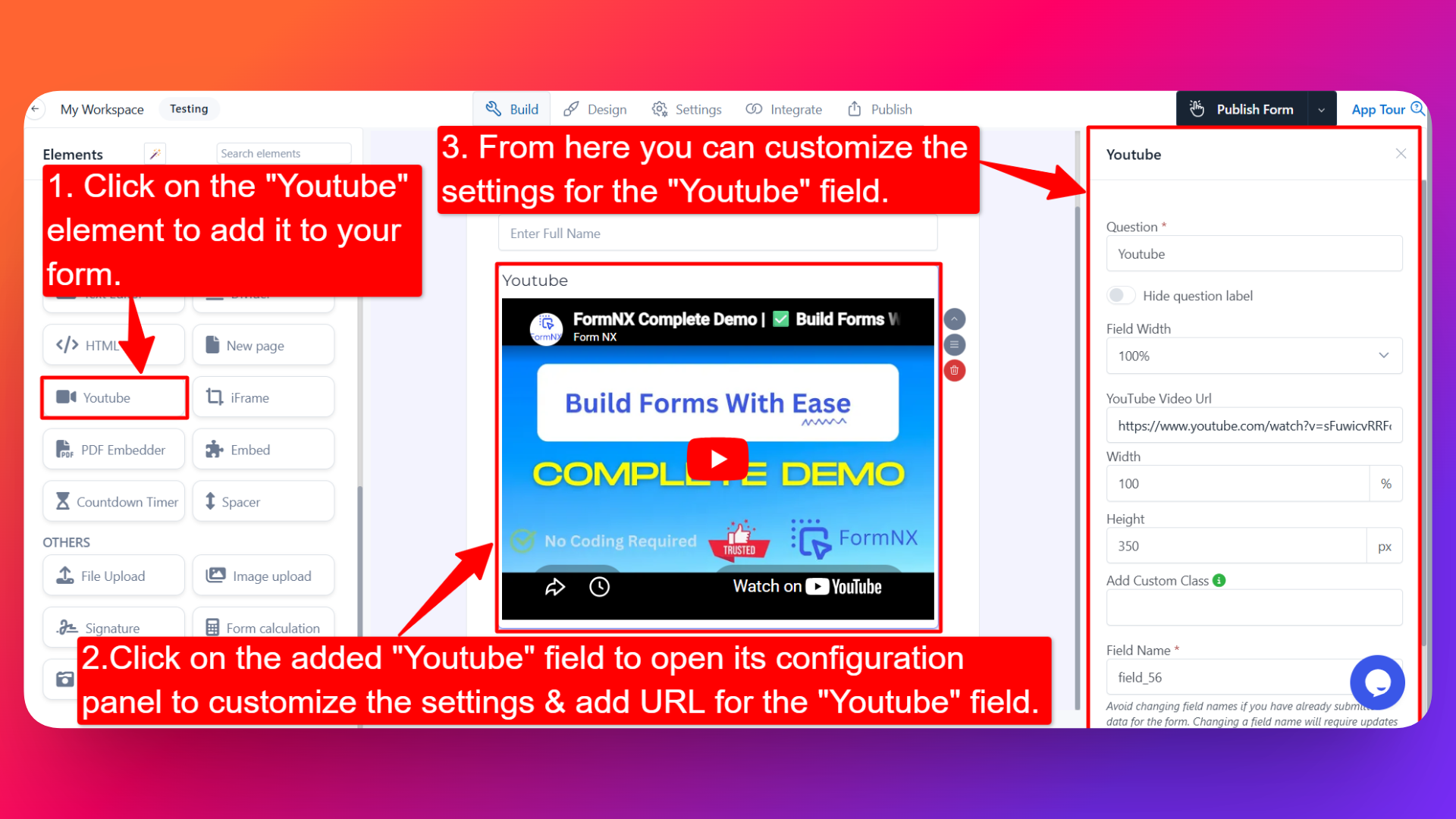
- Drag and drop the element onto your form OR click on the element to add it automatically.
Once added, the YouTube element will appear in your form layout, ready to be customized.
⚙️ How to Configure the YouTube Element
To customize the YouTube element:
- Click on the YouTube element in your form.
- The configuration panel will open on the right hand side.
From here, you can configure the following options:
- Question Label ✏️
- Add a label for the YouTube element that will appear above the video.
- Example: "Watch this short intro before filling the form."
- Hide Question Label 🙈
- Enable the Hide Question Label option to hide the label while keeping the video visible.
- Useful when the context is clear and you only want to show the video.
- Field Width 📐
- Adjust the width of the element to control how it appears on the form.
- Useful for placing the video alongside other fields or full-width on the form.
- YouTube Video URL 🎥
- Paste the YouTube video URL you want to embed.
- Example:
https://www.youtube.com/watch?v=xxxxxxxx - The video will automatically load and play inside your form.
- Width (in %) ↔️
- Set the width of the embedded video as a percentage of its container.
- Example:
100%makes the video fill the available space.
- Height (in px) ⬆️⬇️
- Set the height of the video player in pixels.
- Adjust based on how prominent you want the video to appear.
- Field Name 🏷️
- Set a custom field name used internally (helpful for identifying the element inside the form builder).
👤 How It Works for Users
When users open the form:
- They'll see the embedded YouTube video displayed inline with the rest of the form.
- They can play, pause, and watch the video directly within the form — no need to leave the page.
- The video is display-only — users don't need to interact beyond watching it.
💡 Common Use Cases
- Adding an introduction video at the top of a form to welcome users.
- Sharing a tutorial or walk-through that explains how to fill the form.
- Embedding product demos in lead generation or order forms.
- Showing promotional or marketing videos in event registration forms.
- Adding educational videos in course enrollment or training forms.
The YouTube element is a powerful way to make your forms more engaging and informative by combining video content with data collection.