📄 Page Break
The Page Break element in FormNX (also known as the New Page element) lets you split your form into multiple pages. Instead of showing all the fields on a single long page, you can break your form into smaller, easier-to-fill sections — improving the experience for your users.
📌 How to Add a Page Break to Your Form
Follow these simple steps:
- Open the Form Builder.
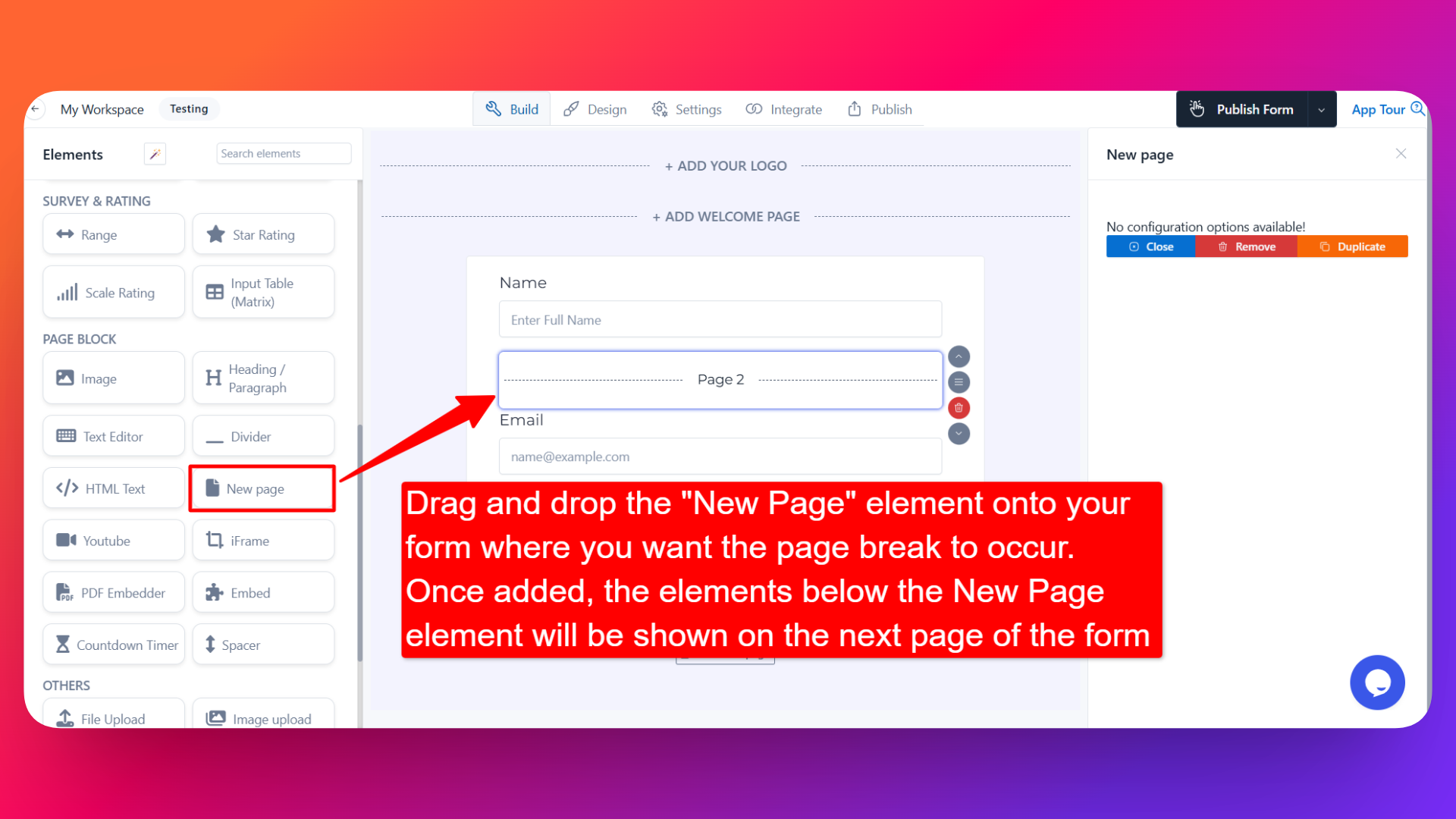
- On the left hand side, you'll see the Elements section.
- Look for the New Page element.
- Drag and drop the element onto your form OR click on the element to add it automatically.
- Place the New Page element in your form where you want the page break to occur.
Once added, all the elements below the New Page element will be shown on the next page of the form.
⚙️ How the Page Break Works
- The Page Break element acts as a divider between pages.
- Everything above the page break stays on the current page.
- Everything below the page break appears on the next page.
- You can add multiple page breaks to split your form into as many pages as you need.
👤 How It Works for Users
When users open the form:
- They'll see only the fields on the current page.
- After filling them in, they can click Next to move to the following page.
- They can also click Previous to go back and review or update their answers.
- The form will only be submitted once they reach and complete the final page.
💡 Common Use Cases
- Breaking long forms into smaller, manageable sections (e.g., job applications, registration forms).
- Creating multi-step forms where each step focuses on one topic (e.g., personal details → contact info → payment).
- Improving completion rates by reducing the visual length of the form.
- Designing survey or quiz forms with grouped questions per page.
The Page Break (New Page) element is the easiest way to turn a single long form into a clean, multi-page experience — making it much easier for users to complete.