🔗 Embed
The Embed element in FormNX lets you add custom embed code, widgets, or third-party content directly into your form. It's perfect for embedding maps, calendars, social feeds, payment widgets, or any other external content that supports embed code.
📌 How to Add the Embed Element to Your Form
Follow these simple steps:
- Open the Form Builder.
- On the left hand side, you'll see the Elements section.
- Find the Embed element.
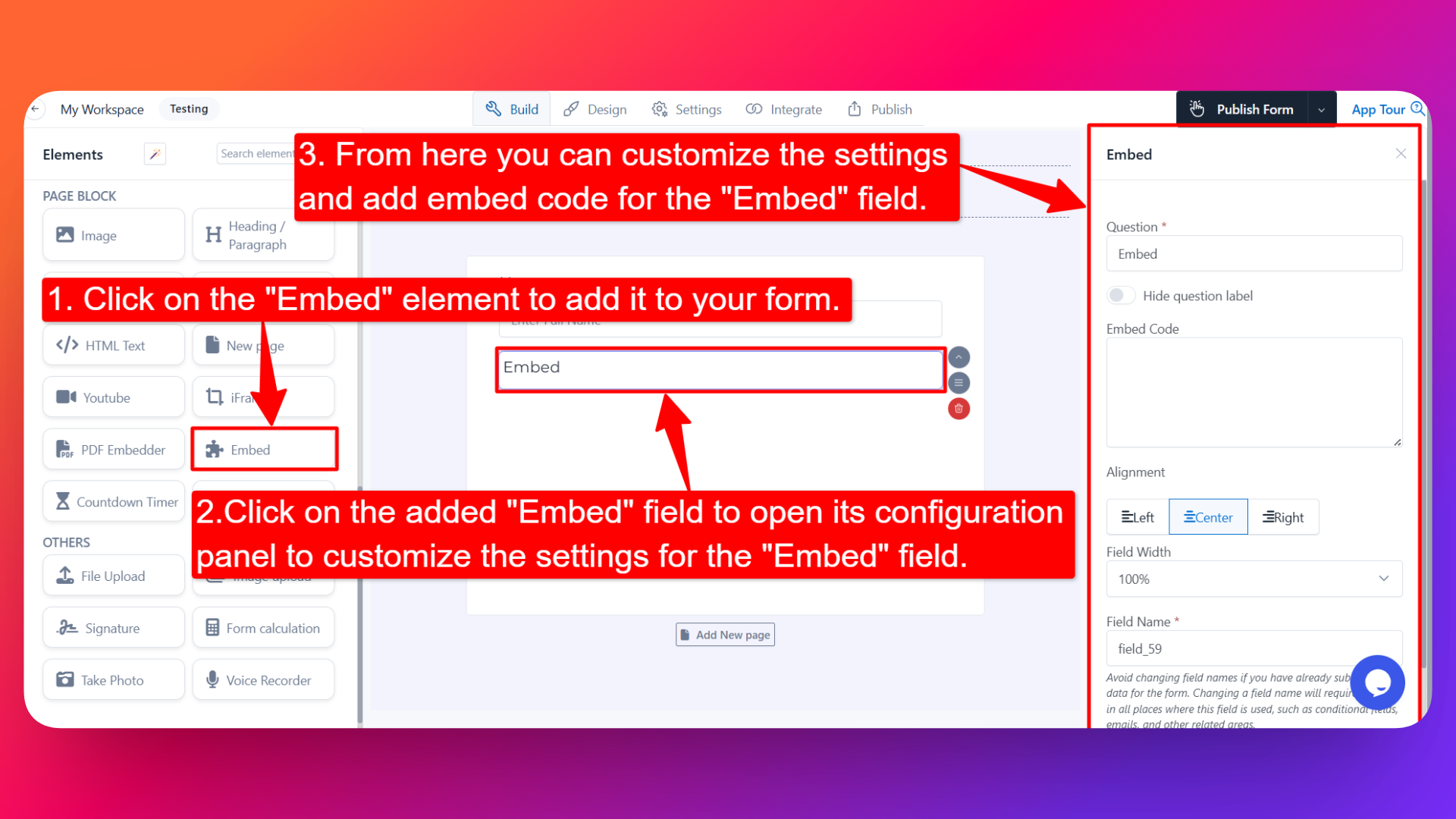
- Drag and drop the element onto your form OR click on the element to add it automatically.
Once added, the Embed element will appear in your form layout, ready to be customized.
⚙️ How to Configure the Embed Element
To customize the Embed element:
- Click on the Embed element in your form.
- The configuration panel will open on the right hand side.
From here, you can configure the following options:
- Question Label ✏️
- Add a label for the embed element that will appear above the embedded content.
- Example: "Find us on the map" or "Book a time slot below"
- Hide Question Label 🙈
- Enable the Hide Question Label option to hide the label while keeping the embedded content visible.
- Add Embed Code 💻
- Paste the embed code (HTML/iframe) for the content you want to display.
- The embed code is provided by the third-party service you want to integrate (e.g., Google Maps, Calendly, social media widgets).
- Alignment ↔️
- Set the alignment of the embedded content:
- Left
- Center
- Right
- Field Width 📐
- Adjust the width of the embed element to control how it appears on the form.
- Useful for placing the embedded content alongside other fields or full-width on the form.
- Field Name 🏷️
- Set a custom field name used internally (helpful for identifying the element inside the form builder).
👤 How It Works for Users
When users open the form:
- They'll see the embedded content displayed inline with the rest of the form.
- They can interact with the embedded content directly (depending on what's embedded — e.g., scrolling a map, booking a time slot).
- The embed element gives users a seamless experience without needing to leave the form.
💡 Common Use Cases
- Embedding a Google Map to show your business location in a contact form.
- Adding a Calendly or scheduling widget to let users book appointments.
- Showing social media feeds in lead generation forms.
- Embedding payment widgets or third-party checkout flows.
- Displaying interactive charts, calendars, or external content within your form.
The Embed element gives you complete flexibility to bring external content and widgets into your form — making it more powerful and useful for your users.